Magento 2 advanced product options: hiding the choices that do not apply
Magento's custom options all show at once and cannot depend on each other. Here is what that costs you, what Magento's option prices can and cannot do, and how dependent options fix it.
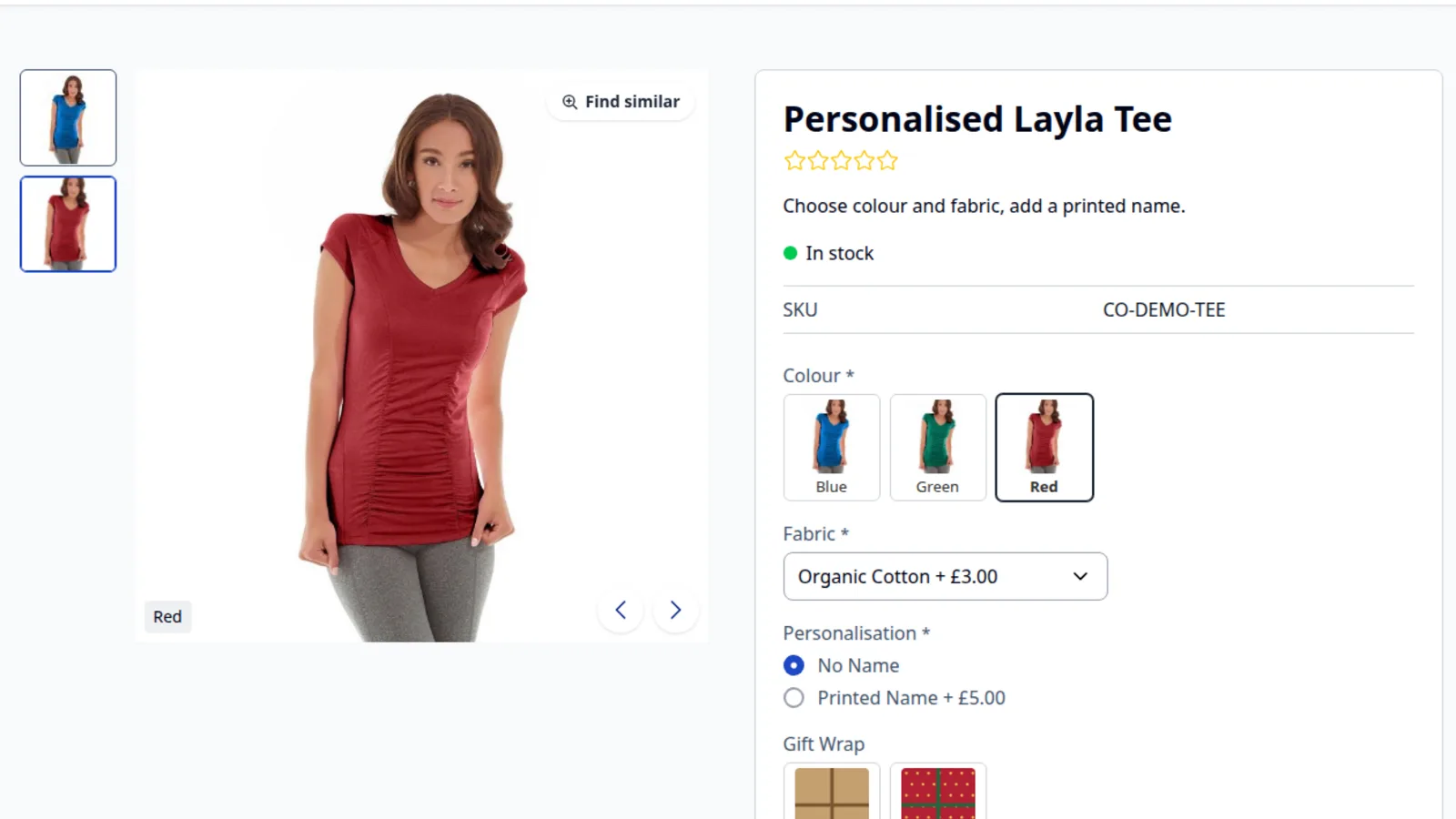
An order comes in for a personalised T-shirt: neon green, organic cotton, "No Name", and a name to print in the text field anyway. You do not sell organic cotton in neon green, and the customer said they did not want a name, but the product page let them fill in everything. Now someone has to email them, wait, and probably refund part of the order.
Magento's custom options are good at collecting choices. What they cannot do on their own is react to each other. Every option on the product is shown at once, and every value is always available. On anything made to order, that means combinations you cannot make and questions that do not apply.
What Magento's custom options do, and where they stop
In the product form, under Customizable Options, you can add text fields, text areas, file uploads, dates and the select types: drop-down, radio buttons, checkboxes and multiple select1. Each option or value can be required, have its own SKU and carry a price.
The price is where many people start searching, often for "Magento 2 custom options absolute price". Magento offers two price types for an option: Fixed and Percent2. A fixed price is added to the product price; a percent price is that percentage of the product's price, also added on top3. The option price is added to the price of each unit4, so a value priced as a setup fee is charged again for every unit in the cart.
There is no price type that replaces the product price, and none that charges once per order line. If that is what you need (an engraving plate charged once, whatever the quantity), core Magento cannot do it, and our module does not change how option prices are calculated either. That needs custom pricing code, or a quote for those orders. We wrote about when an extension or your own module is the better choice, and this is a case where it depends on how unusual your pricing is.
The other gap is the one from the opening: options cannot depend on each other, so a required "Name to Print" field stays required even for customers who chose "No Name".
Dependent options: when selected, hide
Advanced Custom Options adds a When Selected, Hide list to every value of a drop-down, radio button, checkbox or multiple select option. It shows the product's other options with their values. Tick an option name to hide the whole option, or tick single values to hide just those.
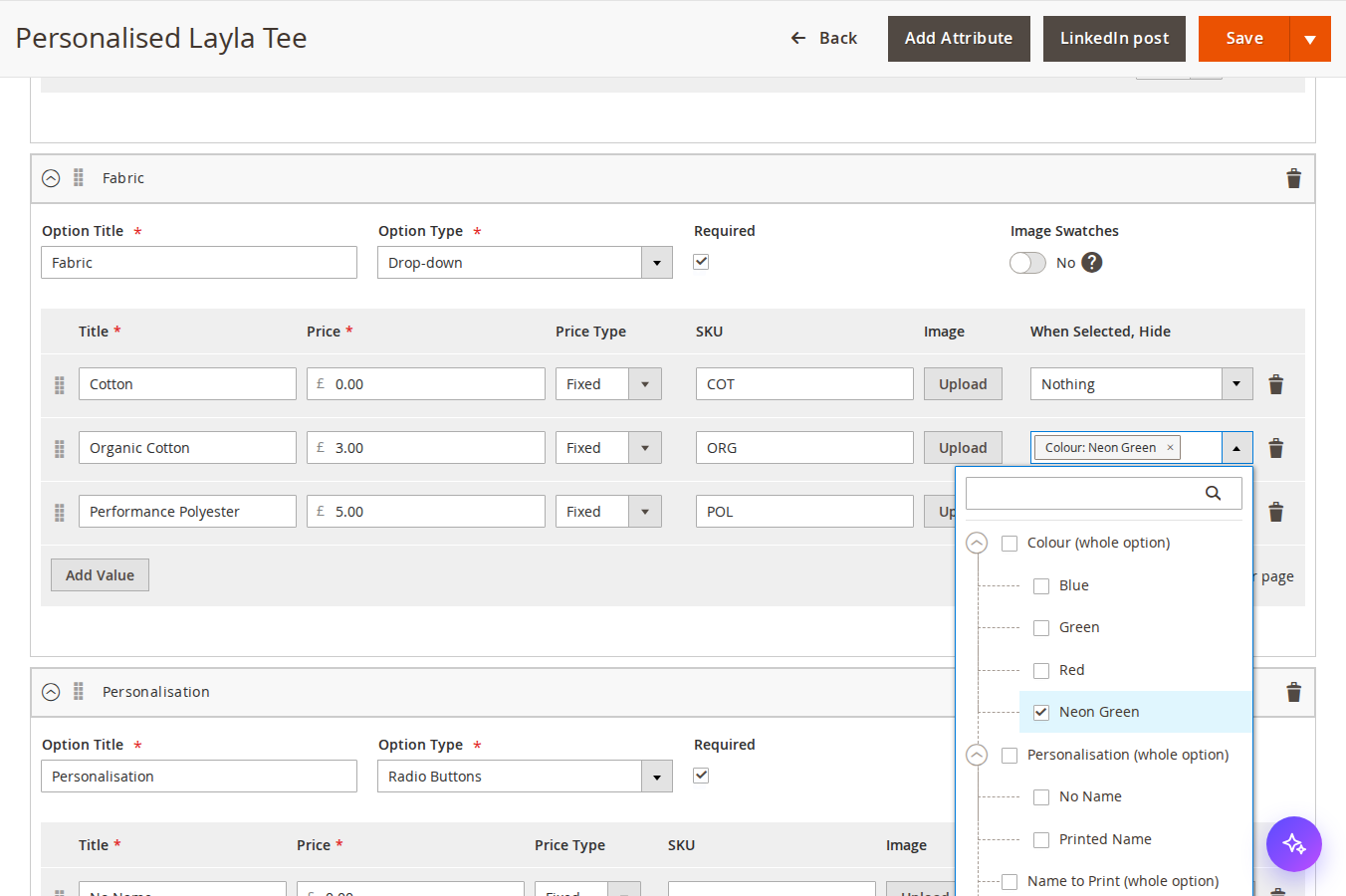
For the T-shirt, that is two ticks. On the value "Organic Cotton" of the Fabric option, tick "Neon Green" under Colour. On the value "No Name" of Personalisation, tick "Name to Print (whole option)". Customers who choose organic cotton no longer see neon green, and the name field disappears for anyone who does not want a name.
A few rules make this behave sensibly on real products. A hidden option is cleared and is not required, even when it is marked as required, so a hidden name field never blocks the add to cart button. An option whose values are all hidden counts as hidden. A value only hides something while it is visible itself, so chains of rules settle in a predictable order. Rules that would hide each other in a loop (A hides B, B hides A, also through other options) are not offered in the list, and if one reaches the server anyway, the save is refused with a message. Rules can be set on select-type values, and they can hide options of any type, including text fields and file uploads.
Making sure nobody pays for a hidden option
Hiding things in the browser is the easy half. An old tab or a request sent straight to the API could still submit a value the page would have hidden, and you end up with a wrong order or an error the customer cannot fix.
So the rules run twice. On the product page, the module's script hides and disables options as the customer chooses. On the server, the module applies the same rules every time an item is added to the cart or updated: from the product page, in the cart, through REST and GraphQL, on reorder and when an order is created in the admin. Values hidden by the customer's other choices are removed from the request before Magento validates and prices it. A hidden value is never charged, and a hidden required option is not reported as missing. The browser and the server use the same algorithm, and we test that they agree on randomly generated sets of options and rules.
There is one case worth knowing about. If the only value a customer picked for a visible required option turns out to be hidden by another choice, the server removes it and Magento reports the required option as missing. That is the honest result: the combination is not available.
Images for the choices people make
The other common complaint about custom options is that customers cannot see what they are choosing. A drop-down that says "Red" is fine for a T-shirt and much less fine for a fabric or a gift wrap.
Each select-type value can have an image. When the customer chooses it, the product gallery shows that image, and the cart, mini cart and checkout summary use it as the item thumbnail, so the customer sees the red shirt in the cart and not the blue one from the catalogue. Per option, you can switch on Image Swatches to show values as clickable pictures with their title and price instead of a drop-down or radio buttons. The swatches are buttons that work with the keyboard and screen readers, and the original control stays in the page, hidden, so Magento's prices, validation and add to cart work as usual.
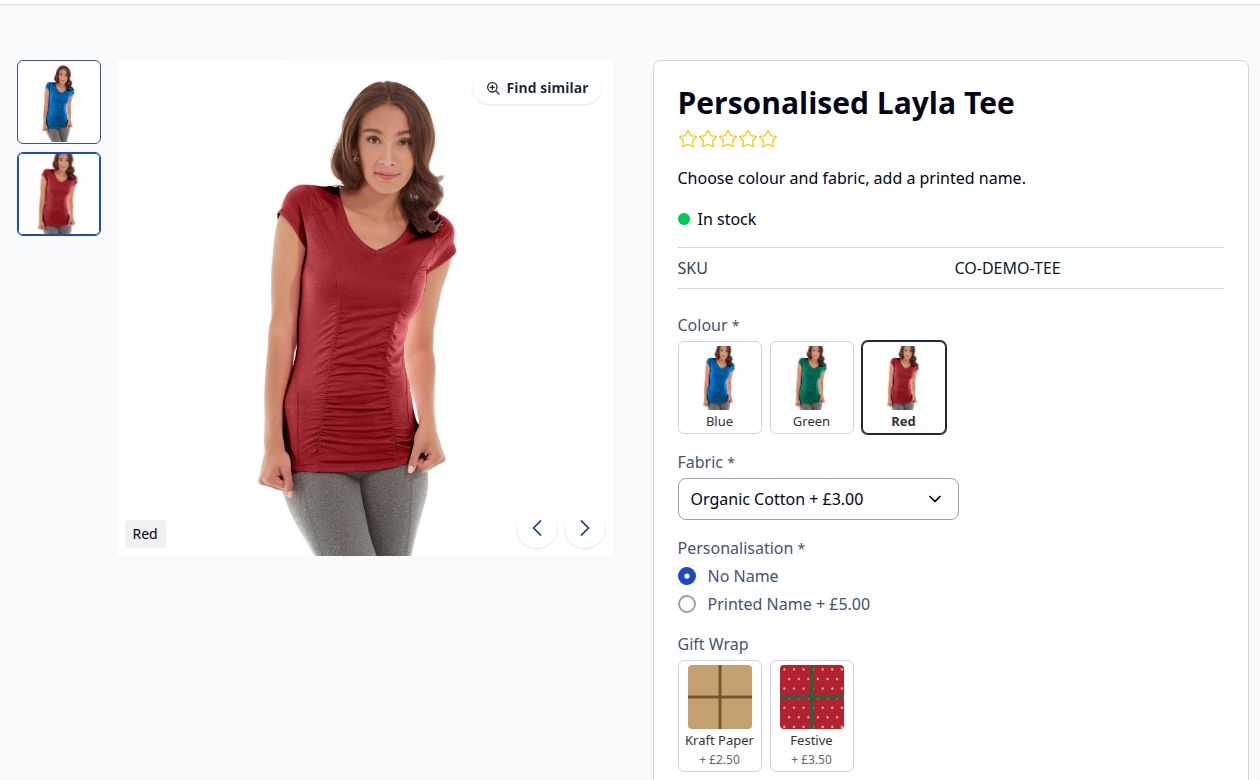
Where one picture per value is not enough, combination images cover a set of choices, such as the red shirt in kraft paper gift wrap. And if many products share the same options, an option template holds them once and updates every product it is assigned to.
Limits, and when you do not need this
The module does not change option pricing, so the absolute price and once-per-line fee questions above still need another answer. Magento's product REST and GraphQL APIs do not return the images, swatches or rules, so a headless storefront does not show them, although the server still applies the rules when items are added to the cart through those APIs. Each value has one image for all store views. A CSV import with the "Replace" behaviour recreates options and loses their images and rules; "Add/Update" keeps them. It has been tested on Magento Open Source 2.4.6 to 2.4.9 with Luma and Hyvä, mainly with simple products, and not on Adobe Commerce.
If your options are independent of each other (a size and a gift message, say), Magento's own custom options are enough, and you should not add a module to manage them. The point where dependent options pay off is when you start getting orders you cannot make, or emails asking customers what they meant.
The Advanced Custom Options page links to the demo T-shirt on Luma and Hyvä, where you can choose organic cotton and watch neon green disappear.
Sources
- Adobe Commerce Admin documentation, "Customizable options", https://experienceleague.adobe.com/en/docs/commerce-admin/catalog/products/settings/settings-advanced-custom-options, checked 26 October 2026. ↩
- Magento Open Source 2.4.9 source code,
app/code/Magento/Catalog/Model/Config/Source/Product/Options/Price.php(price types Fixed and Percent), checked 26 October 2026. ↩ - Magento Open Source 2.4.9 source code,
app/code/Magento/Catalog/Model/Product/Option/Type/DefaultType.php, method_getChargeableOptionPrice()(percent of the base price, otherwise the fixed amount), checked 26 October 2026. ↩ - Magento Open Source 2.4.9 source code,
app/code/Magento/Catalog/Model/Product/Type/Price.php, method_applyOptionsPrice()(option prices added to the product's final unit price), checked 26 October 2026. ↩
From our shop
Related Products
-
Advanced Custom Options
Images and image swatches for custom option values, options that hide other options, and templates that put the same options on many products.
- Magento 2.4.6 – 2.4.9
- Hyvä
- Luma
- Version v2.1.2
$299
-
Bundle Option Images
Give every selection of a bundle product its own images: the product page gallery shows what the customer picks, and the cart shows it too.
- Magento 2.4.6 – 2.4.9
- Hyvä
- Luma
- Version v2.1.1
$249
-
Request a Quote
Shoppers ask for a price from the product page or the cart, you reply with a proposal from the admin, and the agreed prices go into their cart, locked. Quick order and hidden prices included.
- Magento 2.4.6 – 2.4.9
- Hyvä
- Luma
- Version v2.0.6
$229