One progress bar for free shipping, gifts and tier discounts
When a shop has several spend thresholds, the shopper needs one clear answer to how much more to spend. How to put every reward on one bar in Magento 2.
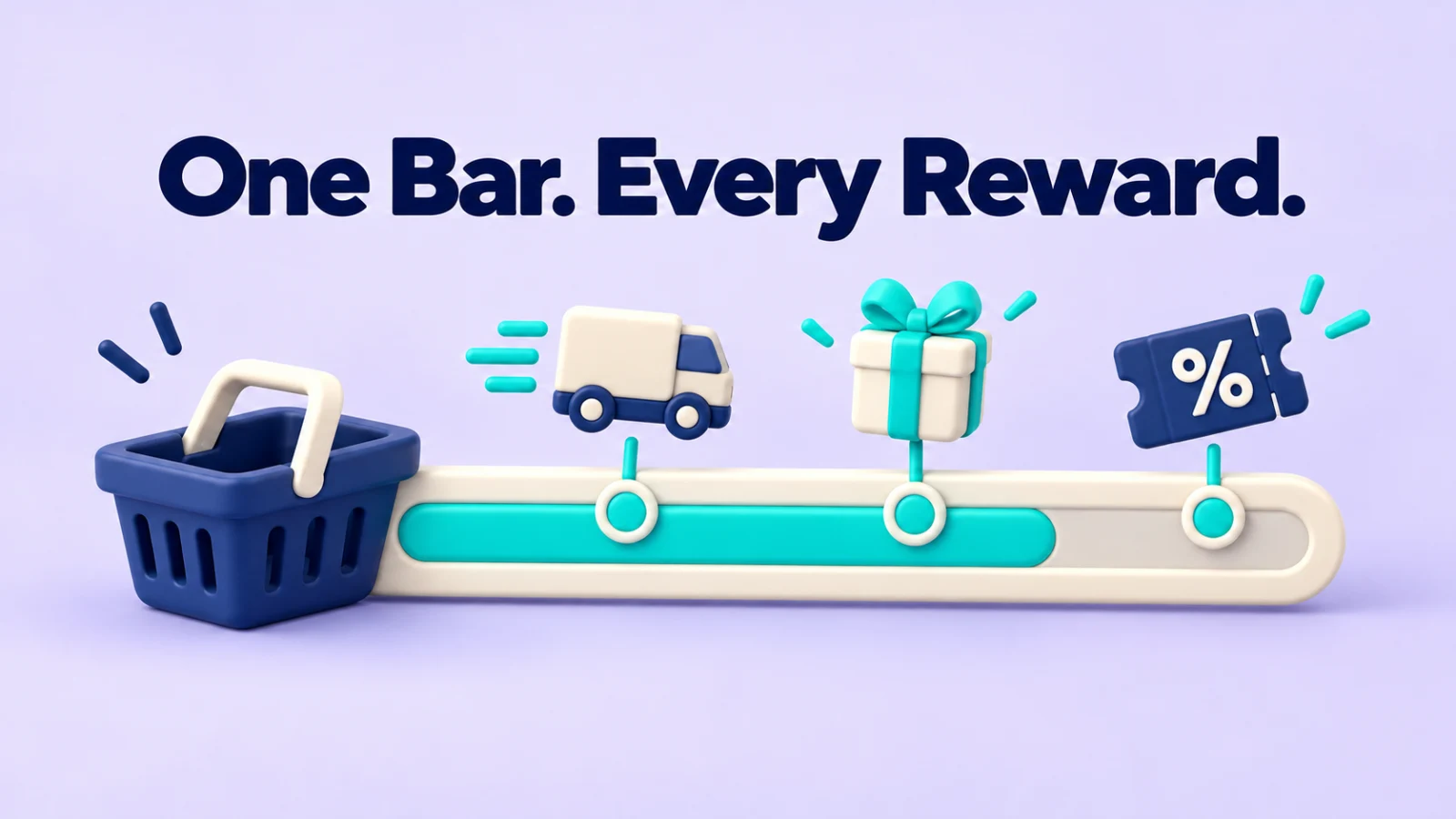
Count the thresholds in a typical shop by the time the Christmas promotions are set up. Free delivery from £50, set months ago on the shipping method. A free tote bag from £100, added in October. A "spend £200, save 10%" rule for the last fortnight before Christmas. Each one was a sensible decision. Together they leave the shopper with a basket of £43 and no idea which of the three things they are close to, or by how much.
A progress bar fixes that, but only if it shows all of them and measures the basket the same way each rule does. This post explains where Magento keeps these thresholds, why a bar can disagree with the rule it is drawing, and how our Cart Progress Bar module puts them on one bar.
Where the thresholds live in Magento
Free delivery on a minimum spend is usually one of two things in Magento. The Free Shipping method has a "Minimum Order Amount" setting, with a separate "Include Tax to Amount" option1. Or a cart price rule gives free shipping, with a condition such as "Subtotal equals or greater than 50". Gifts and percentage tiers are usually cart price rules too, or come from an extension.
Magento uses these amounts to decide whether the reward applies. It does not tell the shopper how far away they are. That is the job of a message or a bar, and it is where the problems start, because the message is often written by hand ("Free delivery over £50!") in a banner or a theme template, separately from the rule.
The two drift apart in small ways. The rule compares the subtotal after discounts, the banner implies before. The rule includes tax, the banner does not say. Somebody changes the threshold to £60 in January and the banner still says £50. The shopper does the arithmetic the banner taught them, and the cart says no.
Reading the thresholds instead of retyping them
The Cart Progress Bar does not ask you to type the free shipping amount again. It reads milestones from where they already are: the Free Shipping method's Minimum Order Amount, active cart price rules without a coupon that give free shipping and have a top-level "Subtotal equals or greater than" condition, CommerceGears Free Gift rules (only while Free Gift is switched on for the store view) and Tiered Discounts tiers when those modules are installed. Each source can be switched on or off and ordered in the settings.
You can also add milestones of your own: an amount, the cart value it is compared with, the reward text the shopper reads, an icon, websites, customer groups and dates. Be aware that an own milestone only shows a reward on the bar. It does not give a discount. Set up the reward itself as a cart price rule with the same amount.
Each milestone is compared with the cart amount its source declares: subtotal excluding or including tax, before or after discounts. That is the detail that keeps the bar honest. If the free shipping rule counts the subtotal after discounts, the bar counts it the same way, and a shopper with a 10% code sees the real distance, not the distance before the code.
Milestones with the same amount share one marker, so a gift and a discount at £100 read as "A free gift and 10% off". With more milestones than fit (five by default), the bar shows the last one reached and the next ones.

Where the bar appears
The bar shows in the Luma mini cart and the Hyvä cart drawer, and on the cart page with a list of every milestone and its reward. Optionally there is a slim sticky bar at the top of every page (never in the checkout), which can show the first milestone as a teaser to visitors with an empty cart, and which customers can hide for the session. There is also an optional line on product pages, "Add this item and get free shipping", which appears only when that product's price would reach the next milestone.
Messages are plain text with placeholders for the amount still needed and the next reward, so "Spend £18.00 more for free shipping" can be reworded per store view. The bar updates after every cart change, and amounts are shown in the cart's currency.
One practical note. Free Gift and Tiered Discounts each have their own spend-more notice. If they also appear on the progress bar, switch their own notices off so shoppers do not see the same goal twice. The screenshot above shows both, which is exactly what you would want to avoid on a live store.
Suggesting something to close the gap
Under the bar, on the cart page by default, the module can suggest one to four products priced from the amount still needed up to that amount plus a percentage (30% by default). With £18 to go, that means products between £18.00 and £23.40. Candidates come from cross-sells, related and up-sell products of the items in the cart, a category you choose, and bestsellers, in that order. Suggestions are in stock, visible and not already in the cart. Simple products without required options get an Add button; others link to their page.
This is the part to think about rather than switch on by default. A good suggestion is a small item the shopper might have bought anyway. A poor one is noise above the checkout button. If you have a category of small add-ons, pointing the suggestions at it is usually better than bestsellers.
Measuring whether the bar does anything
The report shows sessions that saw the bar with items in the cart, upsell clicks and adds, carts and orders that reached each milestone, and the average order value of orders that reached a milestone next to all orders. Read that last comparison with care. Customers who were going to spend £120 anyway also "reached" the £100 milestone. The numbers tell you what happened, not what the bar caused.
Limits and when you do not need it
If you have exactly one threshold, free delivery over a fixed amount, and your theme already shows a correct message, you may not need this module. Its value grows with the number of rewards and the number of people who change them.
The product page line compares the product's own price and does not take a discount on that item into account; configurable and bundle products use their lowest price. Suggestions are cached for 30 minutes by default, so price or stock changes show after that or after a cache flush. Item-count rewards, such as "add 1 more item to complete your pack", appear as small hints under the bar rather than as markers on it. The bar is not shown in the checkout.
The Cart Progress Bar module page lists every milestone source and setting, with screenshots on Luma and Hyvä.
Sources
- Magento Open Source 2.4.9 source code,
app/code/Magento/OfflineShipping/etc/adminhtml/system.xml(Free Shipping fields "Minimum Order Amount" and "Include Tax to Amount"), checked 12 October 2026. ↩
From our shop
Related Products
-
Promo Cart Progress Bar
"Spend £18.00 more for free shipping": one progress bar with every reward milestone, in the mini cart, the cart, a sticky top bar and on product pages, with products that close the gap.
- Magento 2.4.7 – 2.4.9
- Hyvä
- Luma
- Version v1.4.0
$149
-
Free Gift
Free gift offers as ordinary cart price rules: add gifts automatically or let customers choose, with a "Spend £X more" notice and gift lines labelled everywhere.
- Magento 2.4.6 – 2.4.9
- Hyvä
- Luma
- Version v2.2.0
$169
-
Tiered Discounts
Spend more, save more: tiered cart discounts managed on one screen, with a cart message that shows customers how far the next tier is.
- Magento 2.4.6 – 2.4.9
- Hyvä
- Luma
- Version v1.3.0
$249