User guide
DHL Shipping for Magento 2: User Guide
Create DHL Paket labels, return labels and tracking from your Magento orders, with post office and parcel shop delivery at checkout, through your own DHL business customer account.
- Version 2.1.0
- Magento 2.4.7 to 2.4.9
- PHP 8.2 to 8.5
- Hyvä and Luma
Ship your Magento orders with DHL Paket (Germany): labels and the Magento shipment in one step, DHL post offices and parcel shops at checkout, automatic tracking with delivery dates, return labels and cancelling, all through your own DHL business customer account. The package is a carrier for CommerceGears Shipping Connect and uses the shared Shipping Core for the checkout, label and tracking screens.
- Admin demo: https://demo.commercegears.com/try-admin/shipping (the Shipping Connect demo shared by all carriers; the demo connections run in sandbox mode and are switched off, so no request reaches DHL)
- Changelog: Release notes · Questions: FAQ

Status: Beta. The Location Finder (pickup point search) is tested live against the DHL sandbox. Labels, returns, cancelling and tracking are built from the developer.dhl.com documentation and tested with recorded responses. Create sandbox labels with your own account and check them before you go live.
1. Requirements
| Magento | Open Source or Adobe Commerce 2.4.7 to 2.4.9 |
| PHP | 8.2 to 8.5 |
| Themes | Checkout: Luma checkout (Hyvä shops use it through Hyva_LumaCheckout); customer order view on Luma and Hyvä |
| Other | commercegears/module-shipping-core 1.1 or later (free, installed automatically) and commercegears/module-core |
| DHL | DHL business customer account in Germany (EKP customer number and business customer portal login) and an app on developer.dhl.com |
What you need from DHL
- Business customer account (DHL Geschäftskunde) with a 10-digit EKP customer number and a login to the DHL business customer portal. The billing number DHL expects is EKP + procedure + participation; the module builds it for each product from the EKP and the Participation (Teilnahme) value (default
01). - developer.dhl.com app with access to Parcel DE Shipping, Parcel DE Returns, Shipment Tracking (Unified) and Location Finder (Unified). The app's API key is used for sandbox and live. For live labels DHL must approve the app for production.
- For return labels: the Returns Receiver ID from the DHL returns portal.
- For cash on delivery: the bank account that receives the money (IBAN, BIC, account holder).
The module cannot create labels without these credentials. For testing, the DHL sandbox accepts a public test user (user-valid), password and EKP 3333333333 from the DHL documentation together with your own API key; the connection form shows them as "Test system: ..." under the fields.
2. Installation
With Composer from the CommerceGears repository. The Composer keys are in your account on commercegears.com; see https://commercegears.com/composer-access/ for the setup.
composer config repositories.commercegears composer https://repo.commercegears.com
composer config --auth http-basic.repo.commercegears.com PUBLIC_KEY PRIVATE_KEY
composer require commercegears/module-shipping-dhl
bin/magento setup:upgrade
bin/magento setup:di:compile            # production mode only
bin/magento setup:static-content:deploy # production mode only
bin/magento cache:flush
Composer also installs commercegears/module-shipping-core and commercegears/module-core. To update later run composer update commercegears/module-shipping-dhl commercegears/module-shipping-core and the same bin/magento commands.
3. Quick start
- Stores > Configuration > CommerceGears > Shipping Connect > General > Enabled = Yes (per store view).
- CommerceGears > Shipping Connect > Carrier Connections > Add Carrier Connection, choose DHL Paket (Germany).
- Enter the name, the credentials and the EKP (section 4), leave Sandbox / Test Mode on for the first tests.
- Click Test Connection. It sends a validation request with your sender address and reports "DHL accepted the credentials and billing number"; no label is created and nothing is saved.
- Add at least one checkout method, fill in the sender address, set Enabled = Yes and save.
- Place a test order with the DHL method, open it in the admin and click Create Shipment and Label.
4. The DHL connection
CommerceGears > Shipping Connect > Carrier Connections > edit the DHL connection. Several DHL connections are fine, for example one per website or a sandbox and a live one.
General
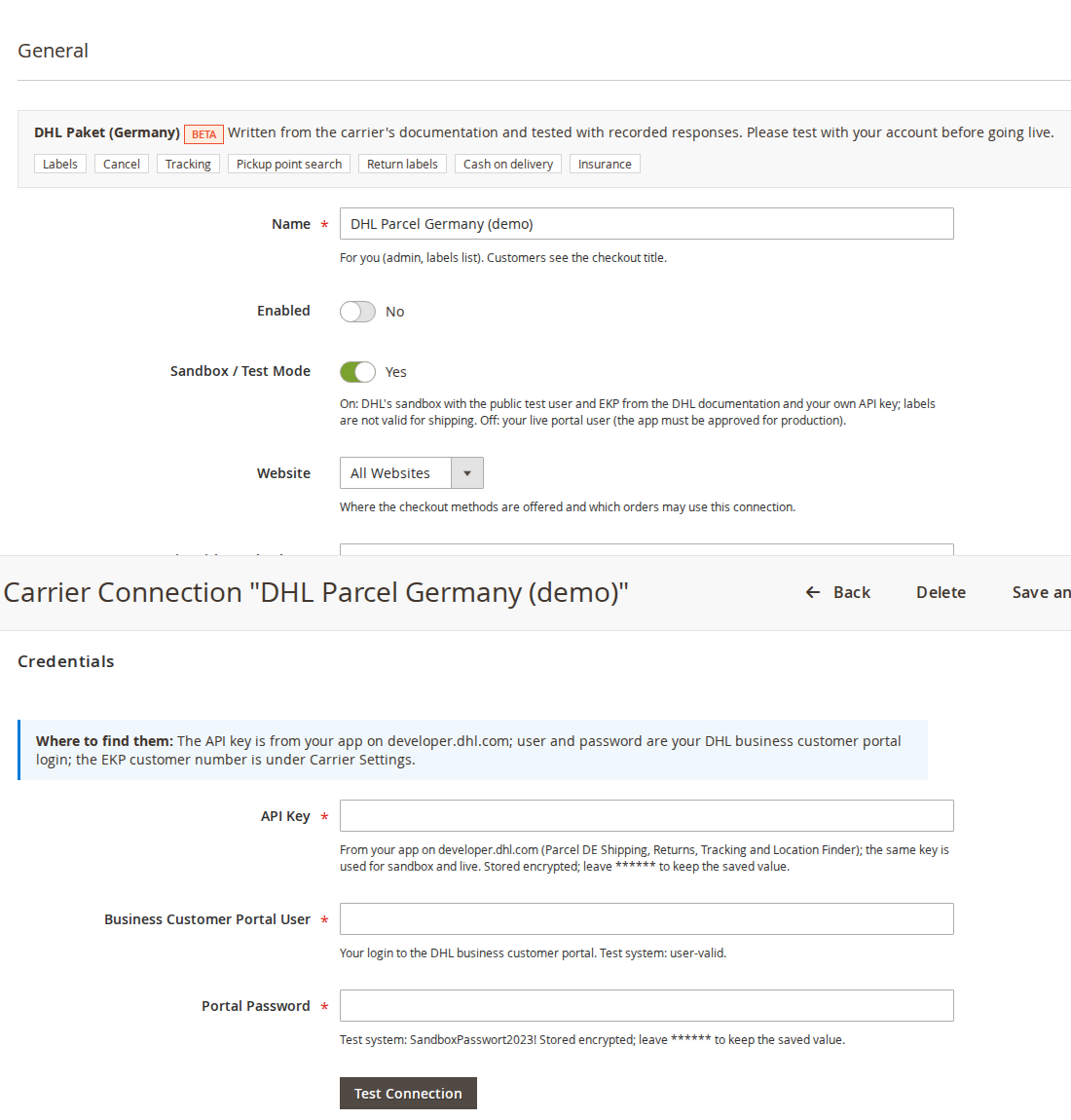
- Name: for you (admin and labels list). Customers see the checkout title.
- Enabled: only enabled connections offer checkout methods and are called for labels, return labels, pickup point searches, tracking and cancelling. With Shipping Core 1.1.2 or later, "Update Tracking" and "Cancel" on a disabled connection tell you to enable it first, and the cron skips its parcels without calling DHL.
- Sandbox / Test Mode: on uses DHL's sandbox (labels are not valid for shipping); off uses your live portal user.
- Website: where the checkout methods are offered and which orders may use the connection.
- Carrier Title at Checkout: shown above the methods at checkout and in the tracking pop-up (empty = carrier name).
Credentials
- API Key: from your developer.dhl.com app.
- Business Customer Portal User and Portal Password: your DHL business customer portal login.
Secrets are stored encrypted and never shown again; leave ****** to keep a saved value.
Carrier Settings
- EKP (10-Digit Customer Number) and Participation (Teilnahme).
- Label Print Format: 910-300-700 (103 x 199 mm, default), 910-300-410 (103 x 150 mm), 910-300-300 (A5) or A4.
- Returns Receiver ID: from the DHL returns portal (sandbox value
deu). - COD IBAN, COD BIC, COD Account Holder: needed only for cash on delivery.
- Default Carrier Product, Label Format (PDF or ZPL2; ZPL2 labels use 910-300-410) and Pickup Point Selector (the built-in map and list).
Checkout Methods

Each row is a shipping method at checkout:
- Title, Delivery (Home delivery or Pickup point / locker) and Carrier Product (DHL Paket, DHL Kleinpaket, DHL Paket International, DHL Europaket, Warenpost International; pickup point delivery uses DHL Paket).
- Price: flat, by weight or by subtotal with a price table such as
2:4.95, 5:6.95, 31.5:9.95(above the last limit the method is not offered). DHL gives no price quotes through this API, so live prices are not available. - Free From Subtotal, Countries (ISO codes) (empty = all) and Sort.
Cart rules with free shipping make every method free.
Sender Address and Parcel Defaults
The sender address goes on every label (or Use Address of Inventory Source for MSI shops). If it is empty, the store information from Stores > Configuration > General is used. Parcel Defaults (weight in kg, length, width and height in cm) fill the label form when an order has no weights.
5. Pickup points at checkout
For a method with Delivery = Pickup point / locker, customers see Choose pickup point under the shipping methods, search by postcode or town and choose a DHL post office or parcel shop from a list (distance, type and opening hours) next to an OpenStreetMap map. The point is required before the payment step and again when the order is placed. It is stored with the order and shown in the admin order view, the customer's order view, order e-mails and PDFs.
Packstation lockers are not offered: DHL needs the customer's DHL Postnummer for them, which the checkout does not collect. DHL needs the customer's e-mail address for post office and parcel shop delivery.
Settings in Stores > Configuration > CommerceGears > Shipping Connect > Pickup Points at Checkout: Add Pickup Point to Shipping Description, Points Shown per Search, Searches per Minute per Visitor, Map Tile URL and Map Attribution.
6. Creating labels
- One order: order view > Create Shipment and Label. Choose the connection, DHL product, weight and dimensions, the COD amount (pre-filled for cash on delivery payment methods) and an insured value, and whether the customer gets the shipment e-mail. The module creates the DHL label, the Magento shipment with the tracking number and stores the PDF on the shipment, so Magento's "Print Shipping Label" works too.
- Several orders: Sales > Orders, select up to 50 orders > Create Shipments and Labels, then print them as one PDF. Print Shipping Connect Labels prints the labels of selected orders again.
- One parcel per label: DHL numbers each parcel as a shipment of its own; create one shipment per parcel.
A lock per order and a pending record stop double labels when someone clicks twice.
7. Tracking

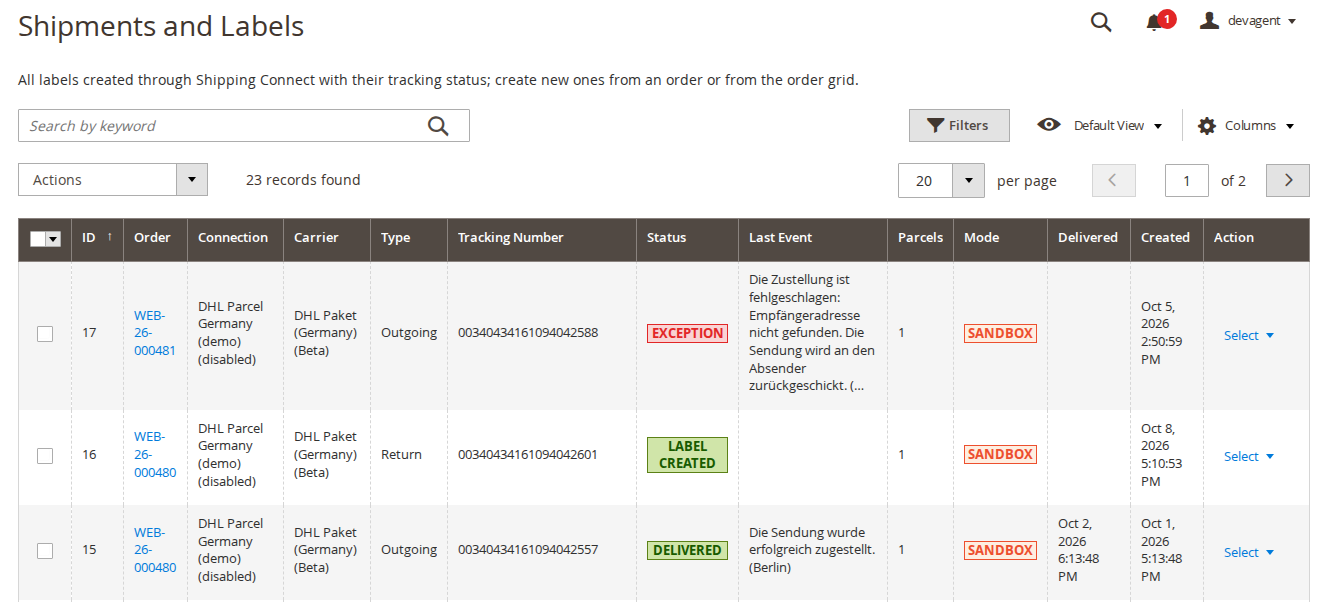
With Track Parcels Automatically on, a cron job asks DHL's Shipment Tracking API for open parcels every 15 minutes (each parcel every 1 to 24 hours depending on its age and status) and stops after delivery or after Stop Tracking After (Days). DHL's statuses map to Pending, In Transit, Out for Delivery, Delivered and Exception. The events, the status and the delivery date appear on the order, the label page and the labels list; customers see the status in their order view.
Settings (Stores > Configuration > CommerceGears > Shipping Connect > Tracking): Parcels per Cron Run, Stop Tracking After (Days), Order Status When Delivered, E-mail Customer When, Tracking E-mail Template and Tracking E-mail Sender. DHL's tracking API allows 250 calls per day by default: keep Parcels per Cron Run in line with your quota. Update Tracking on the order or label page, or the mass action Update Tracking Now, updates at once.
8. Return labels and cancelling
- Return label: order view > Create Return Label. The label is created through DHL's Parcel DE Returns API (PDF) with the customer as sender, addressed to your Returns Receiver ID. The label page offers a signed download link for the customer (30 days). With CommerceGears Returns, the admin return page offers "Carrier return label (Shipping Connect)".
- Cancel: Cancel on the order view or the label page, or Cancel Labels in the labels list. DHL accepts this before the shipment is manifested. The tracking numbers are removed from the Magento shipment.
9. Command line
bin/magento commercegears:shipping:adapters                      # installed carriers and what they support
bin/magento commercegears:shipping:test-connection [id]          # test credentials (all active connections)
bin/magento commercegears:shipping:create-label <order> [-c connection] [-s product] [-p parcels] [-w kg] [--cod amount] [--return] [--no-email]
bin/magento commercegears:shipping:track [--order number] [--label id] [--limit n]
DHL product codes for -s: V01PAK (DHL Paket), V62KP (Kleinpaket), V53WPAK (Paket International), V54EPAK (Europaket), V66WPI (Warenpost International).
10. Permissions (ACL)
System > Permissions > User Roles > Role Resources > CommerceGears > Shipping Connect: View Shipments and Labels, Create Shipments and Labels, Cancel Labels, Create Return Labels, Manage Carrier Connections, View API Log, Settings. Creating labels also creates the Magento shipment, so it needs Sales > Operations > Orders > Actions > Ship as well.
11. Data sent to DHL
Recipient name, company, address, phone and e-mail, parcel weights and dimensions, order number, the chosen pickup point and, for cash on delivery, your bank details. Requests and responses are logged in CommerceGears > Shipping Connect > API Log with keys and passwords masked and label files left out (Log Requests: all, errors only or off).
12. Troubleshooting
- Test Connection fails with a login error: check the API key, portal user and password, and that the sandbox switch matches the credentials (sandbox user with sandbox on, live user with sandbox off).
- "DHL rejected the shipment: ...": DHL's validation message follows, for example about an address field DHL could not accept. Fix the address on the order and try again.
- "EKP" (or "COD: IBAN") is not set in the carrier connection: fill the field under Carrier Settings.
- No DHL methods at checkout: Shipping Connect enabled for the store view, connection enabled, the website and the countries of the method match, and the method's price table covers the cart weight.
- Tracking stays empty: DHL often only knows the number once the parcel is handed over; check the API log and your tracking quota.
13. Uninstall
Disable or delete the DHL connections first, then:
composer remove commercegears/module-shipping-dhl
bin/magento setup:upgrade
Labels already created stay in the labels list. Shipping Core and its tables stay until you remove commercegears/module-shipping-core as well.
This guide is for version 2.1.0 and also comes with the module, in docs/user-guide.md. All user guides