User guide
Social Login Pro for Magento 2: User Guide
Add Apple, Microsoft, LinkedIn, Amazon and GitHub sign-in to the free CommerceGears Social Login, with the same buttons, settings and account rules.
- Version 2.0.4
- Magento 2.4.6 to 2.4.9
- PHP 8.2 to 8.5
- Hyvä and Luma
Social Login Pro adds Apple, Microsoft, LinkedIn, Amazon and GitHub to CommerceGears Social Login, next to Google, Facebook and X. This guide covers installation, the setup of each provider and compatibility. For everything else (where the buttons appear, popup or redirect, accounts, Connected Accounts, admin tools, CLI, privacy and troubleshooting) see the Social Login user guide; it applies to these providers too.
- Product page: https://commercegears.com/magento-2-extensions/social-login-pro-for-magento-2/
- Social Login (free, required): https://commercegears.com/magento-2-extensions/social-login-for-magento-2/
- Changelog: Release notes · Questions: FAQ

1. Requirements
| Magento | Open Source or Adobe Commerce 2.4.6 to 2.4.9 |
| PHP | 8.2 to 8.5 with ext-openssl and ext-json (Magento 2.4.6: PHP 8.2) |
| Themes | Luma, Blank and themes based on them; Hyvä 1.3+ |
| Other | commercegears/module-social-login 1.3 or later and commercegears/module-core (installed automatically) |
2. Installation
With Composer, using the Composer keys from your account on commercegears.com (My account > Composer keys, https://commercegears.com/my-modules/keys/). If the CommerceGears repository is already configured for Social Login, only the composer require line is needed:
composer config repositories.commercegears composer https://repo.commercegears.com
composer config --auth http-basic.repo.commercegears.com PUBLIC_KEY PRIVATE_KEY
composer require commercegears/module-social-login-pro
bin/magento setup:upgrade
bin/magento setup:di:compile            # production mode only
bin/magento setup:static-content:deploy # production mode only
bin/magento cache:flush
The module has no templates or styles of its own, so no Hyvä Tailwind build is needed for it.
To update later: composer update commercegears/module-social-login-pro, then the same bin/magento commands.
3. Where the settings are
Stores > Configuration > CommerceGears > Social Login (also under CommerceGears > Social Login > Configuration). Social Login Pro adds the groups Apple, Microsoft, GitHub, LinkedIn and Amazon between Social Login's provider groups. Social Login's General > Enabled must be Yes.
Each provider has Enabled, its credentials (secrets are stored encrypted), an optional Button Label (empty = "Continue with …") and a Sort Order for the button position. All settings can be set per website and store view.
When you set Enabled = Yes, the callback URL for the current store view is shown below the field, for example https://www.example.com/sociallogin/auth/callback/provider/apple/. Register it at the provider exactly as shown; with several store views or domains, register one per store view URL.

4. Setting up the providers
Apple
- Apple Developer > Certificates, Identifiers & Profiles: create a Services ID and enable Sign in with Apple for it. Add your domain and the callback URL as Return URL.
- Under Keys, create a key with Sign in with Apple enabled and download the .p8 file.
- In Magento enter the Services ID (the identifier, e.g.
com.example.shop.signin, not the App ID), your Team ID, the Key ID, and paste the whole contents of the .p8 file (including the BEGIN/END lines) into Private Key (.p8).
Apple posts its answer back to the store (form_post); the module restores the shopper's session, so the cart is kept. Apple sends the customer's name only on the first authorisation and lets customers hide their email address. If name or email is missing, the customer completes a short form once.
Microsoft
- Microsoft Entra admin centre > Entra ID > App registrations > New registration: under "Supported account types" choose "Any Entra ID Tenant + Personal Microsoft accounts" (or narrower, matching the Tenant you set below).
- Under Authentication add the callback URL as a Web redirect URI, and under Certificates & secrets create a client secret.
- In Magento enter the Application (client) ID and Client Secret. Tenant:
common(work, school and personal accounts, default),consumers(personal only),organizations(work and school only) or your tenant ID (only your organisation).
Given and family name are only returned when you add them as optional claims in the app registration; otherwise the display name is split.
GitHub
- GitHub > Settings > Developer settings > OAuth Apps > New OAuth App; enter the callback URL as Authorization callback URL.
- In Magento enter Client ID and Client Secret.
The email address is read from the customer's verified GitHub addresses (the primary one if verified).
- LinkedIn Developers: create an app and add the product Sign In with LinkedIn using OpenID Connect.
- Under Auth, add the callback URL to Authorized redirect URLs.
- In Magento enter Client ID and Client Secret.
Amazon
- Amazon Developer Console > Login with Amazon: create a security profile.
- Under Web Settings, add the callback URL to Allowed Return URLs.
- In Magento enter Client ID and Client Secret.
Amazon does not say whether an address is verified, so new accounts get Magento's confirmation email and existing customers enter their password once to connect Amazon.
5. Button order
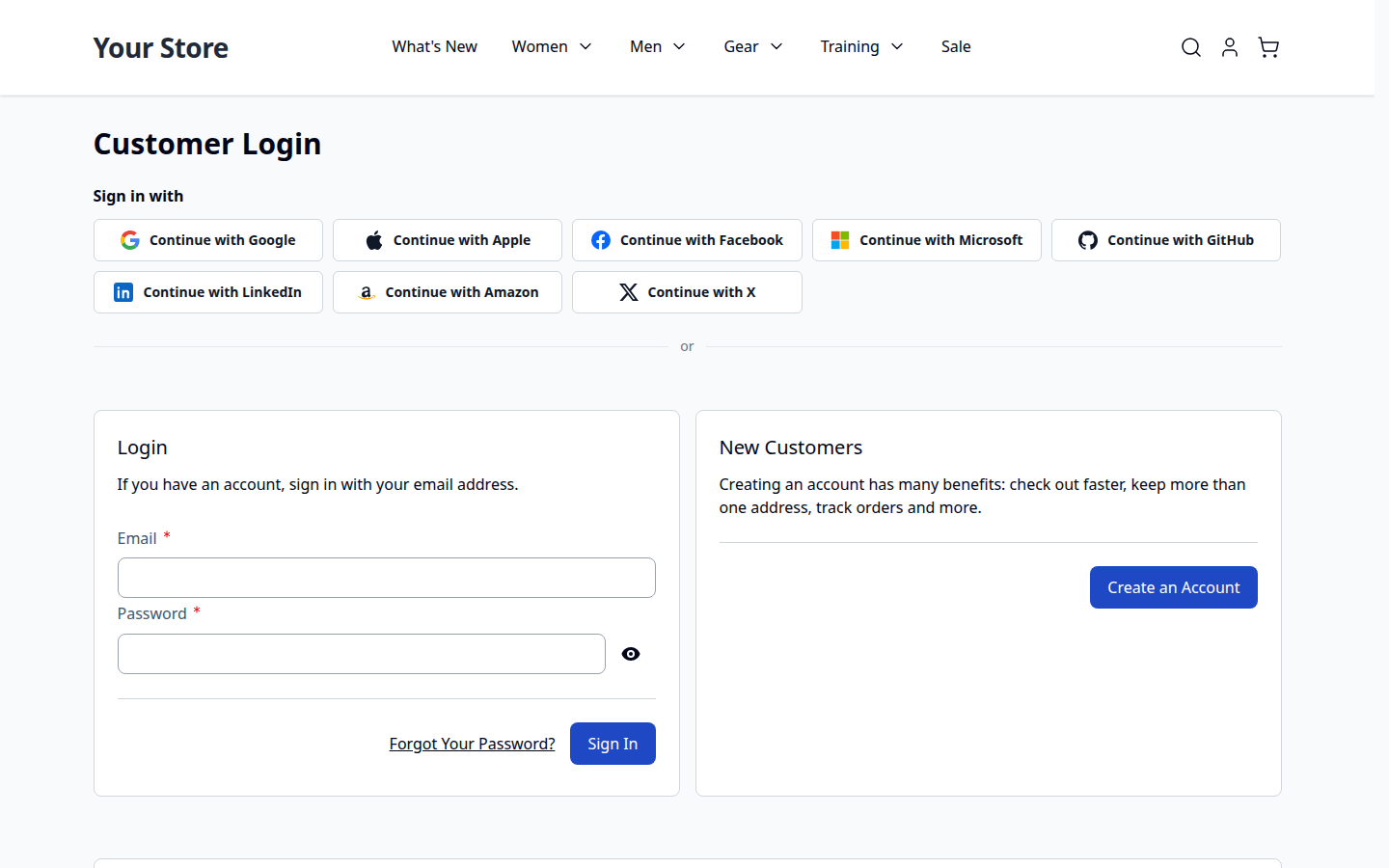
The default sort orders keep this order: Google (10), Apple (20), Facebook (30), Microsoft (40), GitHub (50), LinkedIn (60), Amazon (70), X (80). Change Sort Order to rearrange.
| Hyvä | Mobile |
|---|---|
 |  |
6. Checking the installation
bin/magento commercegears:social-login:self-testThe output starts with the registered providers (it should list apple, microsoft, github, linkedin, amazon) and includes the sections "Social Login Pro providers" and "Sign in with Apple client secret". No provider is contacted.
7. Compatibility
- CommerceGears Social Login 1.3 or later (required), CommerceGears Customer Approval (optional, via Social Login).
- Magento Open Source / Adobe Commerce 2.4.6 to 2.4.9, PHP 8.2 to 8.5 (Magento 2.4.6: PHP 8.2).
- Luma, Blank and Luma-based themes; Hyvä 1.3+ (tested with 1.5). The Hyvä checkout uses the Luma checkout fallback, so the checkout buttons are the Luma ones.
8. Uninstall
bin/magento module:disable CommerceGears_SocialLoginPro
composer remove commercegears/module-social-login-pro
bin/magento setup:upgrade
Customers keep their accounts. Links to these providers stay stored and are shown with their provider code in Social Login's admin tools and under Connected Accounts, where they can be removed. The settings stay in the database.
This guide is for version 2.0.4 and also comes with the module, in docs/user-guide.md. All user guides