User guide
Spin to Win for Magento 2: User Guide
A prize wheel for Black Friday and every other campaign: you set the chances, prize limits and budget, the server draws every prize and each winner gets a personal coupon.
- Version 1.1.0
- Magento 2.4.6 to 2.4.9
- PHP 8.2 to 8.5
- Hyvä and Luma
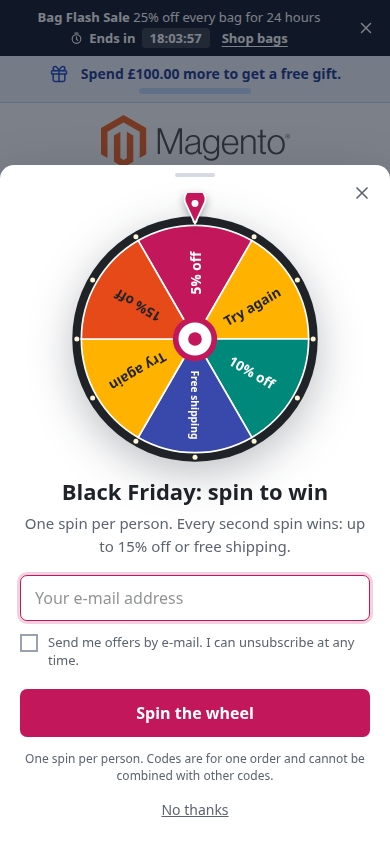
Spin to Win shows visitors a prize wheel. They spin once, and the wheel lands on a prize such as 5%, 10% or 15% off or free shipping, or on "Try again". You decide the chance of every segment, how many winners each prize may have and how much the whole campaign may give away. Every draw happens on your server, and every winner gets a personal, single-use coupon code.
- Demo, storefront (Luma): https://demo.commercegears.com/?tour=promo-spin-to-win
- Demo, storefront (Hyvä): https://demo.commercegears.com/hyva/?tour=promo-spin-to-win
- Admin demo: https://demo.commercegears.com/try-admin/promo-spin-to-win
- Changelog: Release notes · Questions: FAQ

1. Requirements
| Magento | Magento Open Source or Adobe Commerce 2.4.6 to 2.4.9 |
| PHP | 8.2 to 8.5 (Magento 2.4.6: PHP 8.2) |
| Themes | Luma, Blank and themes based on them; Hyvä |
| Other packages | commercegears/module-core 2.0 or later and commercegears/module-promo-core 2.0 or later (installed automatically) |
Optional: Magento's reCAPTCHA v3 module (part of Magento) for an extra bot check, and the other Promotions modules listed in section 11.
2. Installation
Set up Composer access to repo.commercegears.com as described on https://commercegears.com/composer-access/, then run:
composer require commercegears/module-promo-spin-to-win
bin/magento setup:upgrade
bin/magento setup:di:compile            # production mode only
bin/magento setup:static-content:deploy # production mode only
bin/magento cache:flush
On Hyvä themes, rebuild the theme CSS after installing. The wheel itself is plain JavaScript and needs no Tailwind classes, but the module registers itself for Tailwind like every CommerceGears module.
3. Settings
Stores > Configuration > CommerceGears > Spin to Win. All settings except the rate limit can be set per website and store view.
General
- Enabled: when off, no wheel is shown and no spin is accepted. Coupons that were already won keep working. Default: Yes.
- Coupon Reason: stored with every won coupon and shown in the Coupon Wallet and next to the discount in the basket. Empty: "Spin to Win prize".
- Spins per Minute per IP Address: protects the spin endpoint against scripts. One browser may spin a fifth of this number (at least 3) per minute. Default: 10.
Bot Protection
- Check Spins with reCAPTCHA v3: uses the keys and the minimum score of Magento's reCAPTCHA (Stores > Configuration > Security > Google reCAPTCHA Storefront > reCAPTCHA v3 Invisible). It only works when Magento's reCAPTCHA v3 module is installed and both keys are set; otherwise the check is skipped. Default: No.
Every spin is also checked for the same origin (the request must come from a page of your shop), the wheel's signed token, a hidden honeypot field and the rate limit. Parallel spins of the same player are handled one after the other, so the limits cannot be passed by sending several requests at once. "Apply to basket now" only accepts active wheel codes and is rate limited too.
Prize E-mail
- Send the Code by E-mail: sends the won code to the winner as well. Default: No. Follows Magento's "Disable Email Communications" setting.
- E-mail Template and Sender: the template "Spin to Win: Your Prize Code" is the default; you can copy it in Marketing > Email Templates.
The coupon code format (length, characters, default prefix), newsletter subscription on consent and the number of popups per session are shared by all Promotions modules: CommerceGears > Promotions > Configuration.
4. Create a wheel
Go to CommerceGears > Promotions > Spin to Win and click Add New Wheel. The grid shows every wheel with its status (Running, Scheduled, Ended, Budget used up, Inactive), its segments and chances, prizes given against the budget, dates, how it opens and its priority. Mass actions: activate, deactivate, delete.

Wheel
- Wheel Name: for you only, for example "Black Friday wheel".
- Active: the wheel shows between its start and end dates.
- Store Views: make a wheel per store view when its texts must be in another language.
- Customer Groups: NOT LOGGED IN means guests.
- Customer Segments: shown only when a segment provider such as Personalised Offers is installed. Only customers in one of the selected segments see the wheel. Empty: everyone in the selected groups.
- Starts and Ends: date and time in the store time zone. Empty start: as soon as it is active. Empty end: until you switch it off.
- Popup Priority: when several promotions want to open a popup on the same page, the highest priority opens. Default: 20.
Segments and prizes
A wheel has 2 to 12 segments. They run clockwise from the pointer in the order of the rows; drag rows to reorder them.

- Label on the Wheel: up to 24 characters, for example "10% off".
- Colour: background of the segment. The text colour (black or white) is chosen for contrast.
- Prize: Percent off (the items), Amount off the basket, Free shipping, No prize (try again), or Existing cart price rule.
- % or Amount: the discount. Amounts are in the base currency.
- Cart Price Rule: for "Existing cart price rule" only. The rule must use "Specific Coupon" with "Use Auto Generation"; every winner then gets a new code of that rule.
- Min. Subtotal: the coupon only applies from this basket subtotal.
- Weight: relative chance. Chance shows the resulting percentage and updates while you type. Weight 0 means the wheel never lands there (useful for a fallback-only prize).
- Max. Winners and Max. per Day: limit a prize. When a prize has run out, the draw continues with the other segments.
- Valid (Days): how long the won coupon is valid. Codes valid for 3 days or less show a live countdown.
- Value for Budget: what the prize costs you. Empty: estimated from the typical basket and shipping cost (see Budget).
- Fallback: the prize everyone gets when the budget is used up and the wheel is set to "Give everyone the fallback prize".
Budget
- Maximum Number of Prizes: all winning segments together. Empty: no limit.
- Maximum Prize Value: sum of the prizes' values in the base currency. Empty: no limit.
- When the Budget Is Used Up: "End the wheel" (it disappears from the storefront) or "Give everyone the fallback prize" (visitors can still spin; the wheel lands on the fallback segment while it has prizes left, otherwise on a no-prize segment).
- Typical Basket and Typical Shipping Cost: used to estimate prize values. 10% off is counted as 10% of the typical basket (or of the segment's minimum subtotal when that is higher); free shipping as the typical shipping cost.
The budget, the prize limits and the draw are updated together in one database transaction, so two visitors spinning at the same moment cannot both take the last prize.
Who can spin
- Once per E-mail Address, Once per Customer Account, Once per Browser (a signed cookie, no personal data).
- Spins per IP Address per Day: 0 means no limit. Default: 20. Keep it generous: offices and mobile networks share addresses.
- Spin Again After (Days): 0 means once only, 1 once a day, 7 again a week after the last spin. It applies to the limits switched on above.
E-mail and consent
- Ask for the E-mail Address: "Before spinning (everyone)" or "After a win, to get the code". With "after a win", guests spin first and enter their e-mail only to get their code (within 30 minutes). Logged-in customers never type an e-mail: their account e-mail is used.
- Consent Checkbox Text: shown with the e-mail field, for example "Send me offers by e-mail. I can unsubscribe at any time." Empty: no checkbox. A ticked consent is stored with the lead; it subscribes the visitor to the newsletter when that is switched on in CommerceGears > Promotions > Configuration.
- Consent Required to Spin: the visitor must tick the box to spin.
- Coupon Code Prefix: for example SPIN-. Empty: the prefix from the Promotions configuration.
Where and when
- Show On: all pages, or any of home, category, product, CMS, search results and other pages.
- Also on Basket and Checkout: off by default, so the wheel never interrupts a purchase.
- Open the Wheel: after a delay, after scrolling, when the visitor is about to leave, straight away, only from the floating tab, or only as an offer of another promotion (Exit Intent).
- Seconds or Scroll Percentage: for "after a delay" (seconds) and "after scrolling" (percent of the page).
- Do Not Open Again for (Days): after a visitor closed the wheel without spinning. The floating tab stays.
- Floating "Spin & Win" Tab, Tab Position (left or right), Tab Text: a small tab at the side of the page that opens the wheel. It is hidden after the visitor has spun.
- Show on Phones: on phones the wheel opens as a bottom sheet with a smaller wheel.
The wheel opens through the shared Promotions popup manager: only one automatic popup per page view, the highest priority wins, and the per-session cap of the Promotions configuration applies.
Texts and colour
Title, text, button, title after a win, title and text after no prize, small print and the accent colour (buttons, pointer and hub). Empty fields use the defaults shown under each field.
Preview
Preview (in the button bar of a saved wheel) opens the wheel on the storefront for you only. Spins in the preview use the real chances but create no coupons, count no spins and use no budget. The code shown is "PREVIEW".
5. What visitors see
The wheel opens as a popup (or bottom sheet on phones). Guests enter their e-mail address (and tick the consent box if you set one) and press the button. The wheel spins while the server draws the prize and then stops on the segment the server chose.

Winners see the prize, their code with a Copy button, the validity (a date, or a countdown for short-lived codes) and Apply to basket now. If the basket is empty, the code is applied as soon as the visitor adds a product. Visitors who land on "Try again" see your "no prize" texts.
Keyboard and screen readers: the popup traps focus and closes with Esc, every control is reachable with the keyboard, and the result is announced. Visitors who prefer reduced motion get the result without the spinning animation.
6. Results and budget
The Results section at the top of a wheel shows the budget bar (prizes given and estimated value against the limits), views, spins, e-mails captured, coupons issued, coupons used and revenue, and a table per segment: chance, estimated value, how often the wheel landed there, winners and winners today against the limits.

Reset Counters sets the budget use and the winner counts back to zero, for example when you run the same wheel again next year. Won coupons stay valid, and visitors who already spun still cannot spin again (their spins are kept).
All promotions side by side: CommerceGears > Promotions > Overview (source "Spin to Win").
7. Coupons
Every win creates a personal, single-use coupon through CommerceGears Promotions Core. For percent, amount and free shipping prizes the core creates one hidden cart price rule per prize and reuses it. Codes are linked to the winner's e-mail address or customer account; with PromoCore's "Only the Owner" setting (default Yes) other customers cannot use them. Expired codes stop working, and used codes are marked with the order.
8. CLI
bin/magento commercegears:promo:spin:status [--campaign=ID] [--json]
bin/magento commercegears:promo:spin:reset --campaign=ID --force
status lists the wheels with their status, budget use, chances and winners per segment. reset does the same as the Reset Counters button.
9. Permissions
System > Permissions > User Roles > Role Resources, under CommerceGears > Promotions > Spin to Win:
- Manage Wheels: the wheels grid and form.
- Reset Budget and Prize Counters: the Reset Counters button.
- Spin to Win Settings: the configuration section.
10. Privacy
E-mail addresses entered on the wheel are stored as leads by CommerceGears Promotions Core (with the consent text when ticked). Participation checks store only hashed e-mail addresses, IP addresses and browser IDs. The browser cookie sw_promo_vid is a signed random ID, set only when the visitor interacts with a promotion.
11. Works with
- Coupon Wallet: won coupons appear in the customer's wallet, mini cart, basket and checkout.
- Exit Intent: can offer the wheel to visitors who are about to leave (set "Open the Wheel" to "Only as an offer of another promotion").
- Personalised Offers: customer segments such as VIP or lapsed customers as targeting.
- Cart Progress Bar and Scratch & Win: more promotions that share the same popup manager and reports.
12. Troubleshooting
- The wheel does not appear: check that the module is enabled for the store view, the wheel is active and within its dates, the store view and customer group match, the page type is selected, and the visitor has not closed it within "Do not open again" days. Another promotion with a higher priority may have opened first; the floating tab still opens the wheel. Clear the full-page cache after changing settings in the configuration.
- "You have already taken part in this promotion.": one of the limits applies. Use a private window and another e-mail address when testing, or use Preview.
- "This wheel has ended.": the budget is used up and the wheel is set to end. Raise the budget or reset the counters.
- "Too many attempts.": the rate limit was hit. Raise "Spins per Minute per IP Address" if many visitors share an address.
- The code does not apply: check its minimum subtotal and expiry, and that the visitor is the owner of the code.
13. Uninstall
bin/magento module:disable CommerceGears_PromoSpinToWin
composer remove commercegears/module-promo-spin-to-win
bin/magento setup:upgrade
Won coupons keep working until they expire, because they belong to CommerceGears Promotions Core. The wheel tables (commercegears_promo_spin_campaign, commercegears_promo_spin_segment) stay in the database until you drop them.
This guide is for version 1.1.0 and also comes with the module, in docs/user-guide.md. All user guides