User guide
Gift Card for Magento 2: User Guide
Sell gift cards and accept them as payment, with partial use, refunds back to the card, printable PDF cards and a liability report.
- Version 1.2.1
- Magento 2.4.7 to 2.4.9
- PHP 8.2 to 8.5
- Hyvä and Luma
Sell gift cards in your store and accept them as payment. Customers choose an amount, add a message and a delivery date, and the recipient gets an e-mail with the code and a printable PDF card. Cards can pay for part or all of an order; the rest of the balance stays on the card. Refunds go back to the card, and an accounts grid, a balance history and a liability report keep the money traceable.
- Demo, storefront (Luma): https://demo.commercegears.com/gift-card-sample.html?tour=gift-card
- Demo, storefront (Hyvä): https://demo.commercegears.com/hyva/gift-card-sample.html?tour=gift-card
- Demo, balance check (Luma): https://demo.commercegears.com/commercegears_giftcard/balance/
- Demo, balance check (Hyvä): https://demo.commercegears.com/hyva/commercegears_giftcard/balance/
- Admin demo: https://demo.commercegears.com/try-admin/gift-card
- Changelog: Release notes · Questions: FAQ
1. Requirements
| Magento | Open Source or Adobe Commerce 2.4.7 to 2.4.9 |
| PHP | 8.2 to 8.5 |
| Themes | Luma, Blank and themes based on them; Hyvä 1.3 and later (checkout through the Luma checkout fallback) |
| Other | commercegears/module-core (installed automatically); cron must run for scheduled e-mails and expiry |
2. Installation
Install with Composer from the CommerceGears repository. Your access keys and the full set-up are described at https://commercegears.com/composer-access/.
composer require commercegears/module-gift-card
bin/magento setup:upgrade
bin/magento setup:di:compile          # production mode only
bin/magento setup:static-content:deploy   # production mode only
bin/magento cache:flush
Hyvä: the module registers its templates for Tailwind; rebuild your theme's CSS after installing.
3. Configuration
Stores > Configuration > CommerceGears > Gift Cards (or CommerceGears > Gift Cards > Settings).
Redemption
- Enabled: gift cards can be applied and new cards are issued. Orders that already used cards still refund correctly when it is off.
- Gift Cards Can Pay for Shipping / for Tax: both Yes by default.
- Gift Cards Can Pay for Gift Card Products: No by default, so existing cards cannot buy new cards. When an applied card cannot pay for anything in the cart, the cart and the checkout tell the customer why.
- Maximum Gift Cards per Order: 5 by default.
- Credit Memos Return Money: how a partial refund is split between cards and the original payment: in proportion to how the order was paid, gift cards first, or original payment first. The last credit memo always returns exactly what is left. Money of a card that is expired, disabled or deleted at refund time is never put back on it: it goes to the original payment as far as the payment still has money to refund, and the rest is shown as "To refund outside Magento" (see section 6).
- Cards Work on All Websites: lets a card be used on another website with the same base currency.
Issuing Cards
- Create Cards When: the order is invoiced (default, safest) or the order is placed and paid.
- Code Template: used when a product has no code pool or its pool is empty.
{L}letter,{D}digit,{X}letter or digit; at least 10 random characters. - Cards Expire After (Days): 0 means never (default). A product can set its own lifetime.
E-mails: sender, the gift card e-mail template, a copy to the buyer, and the expiry reminder (days before expiry, 0 turns it off) with its template.
Printable PDF Card: accent colour of the header and the small print at the bottom.
Code Guessing Protection: attempts per IP address (10) within a number of minutes (15). Balance checks and wrong codes in the cart, checkout and My Account count.
4. Creating a gift card product
Catalog > Products > Add Product > Gift Card. In the Gift Card Settings group:
- Card Type: Virtual (e-mailed), Printed (posted, needs shipping) or Combined (both).
- Amounts: fixed amounts in the base currency, for example
25, 50, 100. - Let Shoppers Enter an Amount, with Lowest and Highest Amount.
- Expires After (Days): leave empty to use the configuration.
- Code Pool: take codes from a pool instead of the code template.
The catalogue price is set to the lowest amount automatically, so listings show "From £25.00". Set the tax class you need (gift cards are often sold without VAT) and "Manage Stock" as you like.
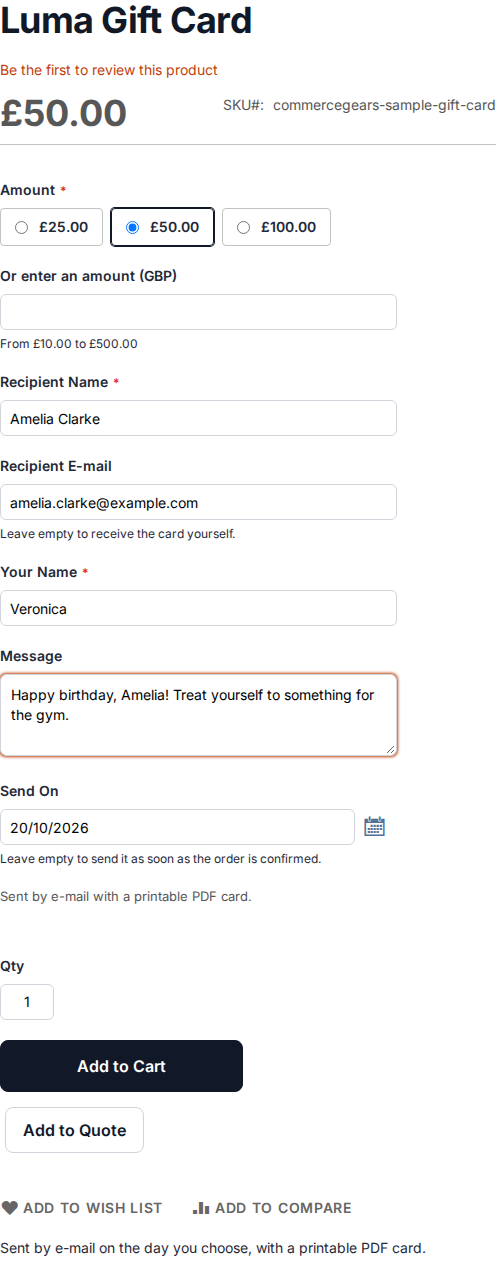
On the product page shoppers choose an amount or type one, and enter the recipient's name and e-mail (empty means the card is for themselves), their own name, a message and an optional delivery date. These details show in the cart, the order and the e-mails.
5. Using gift cards
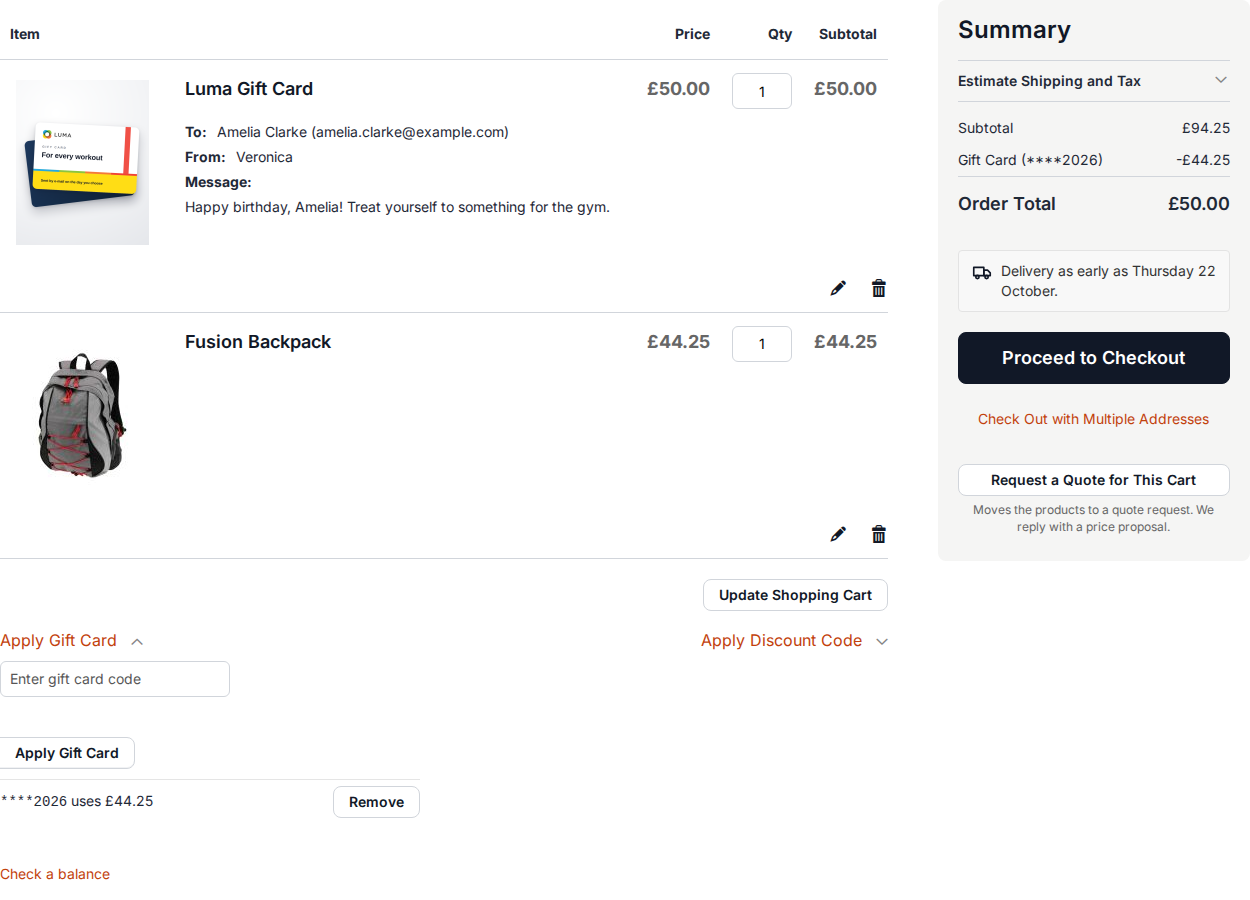
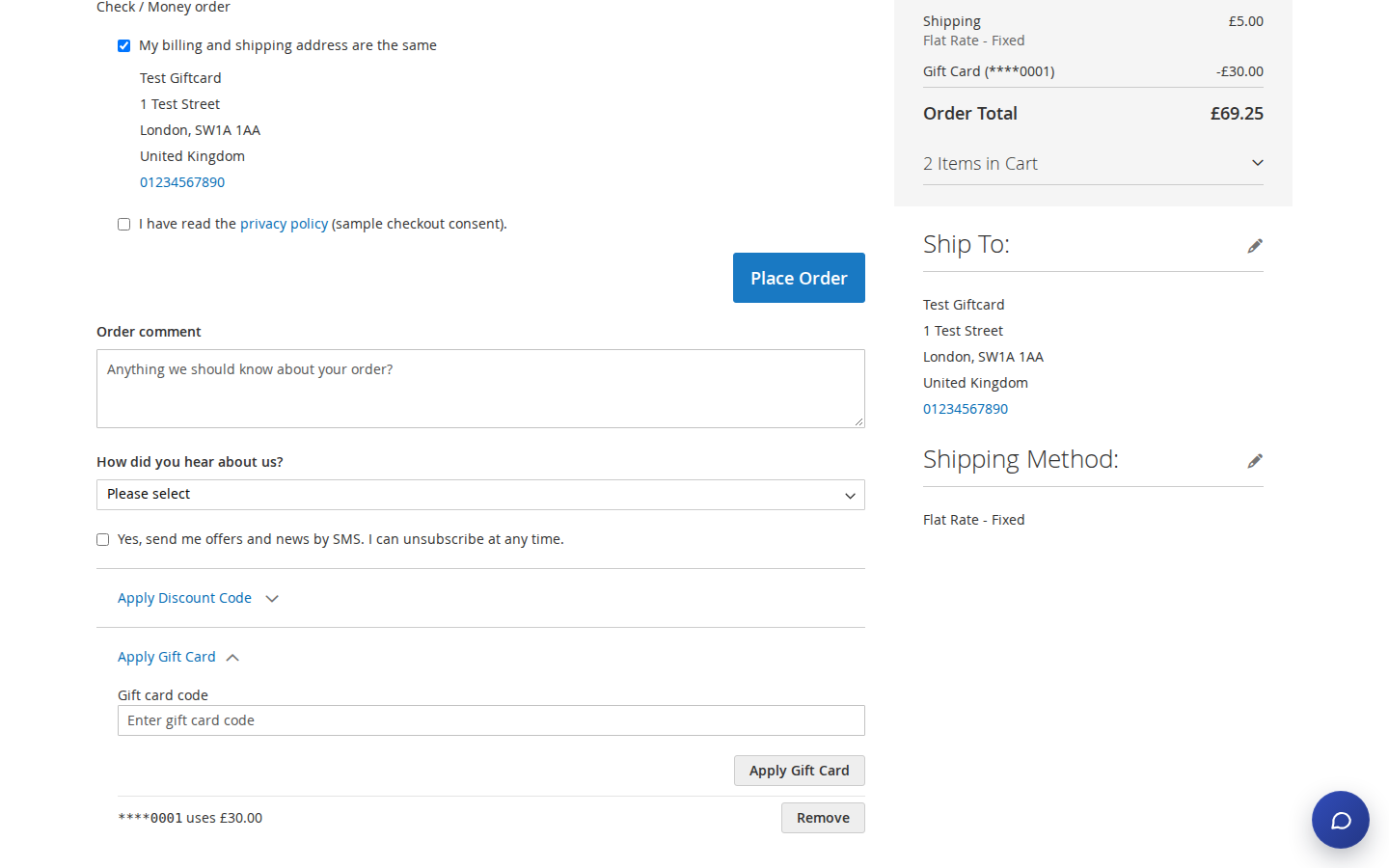
Customers enter a code in the cart (Apply Gift Card, under the items) or in the checkout payment step. The order summary shows "Gift Card (****K7QD)" with the amount. Admins can apply cards when creating an order (Sales > Orders > Create New Order, field Apply Gift Card under the coupon field).
When the order is placed, the money is taken off the card in one step; if the card was just used elsewhere, the order is stopped with a message. Invoices take the gift card money first. A credit memo puts its gift card share back on the card (see Credit Memos Return Money). Cancelling returns everything that was not invoiced. Failed orders return the money straight away.
6. Gift Card Accounts
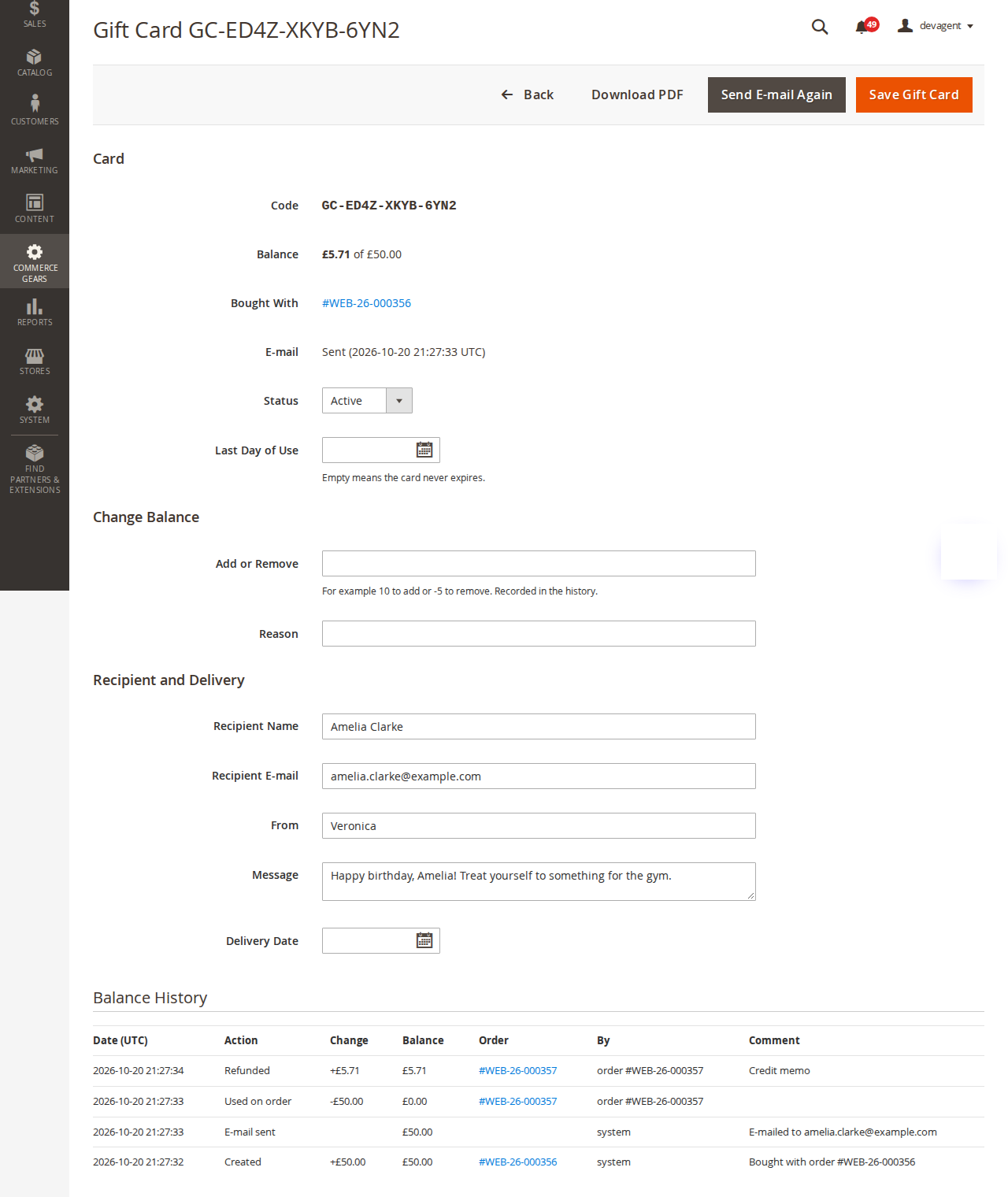
CommerceGears > Gift Cards > Gift Card Accounts lists every card with balance, value, expiry, recipient, the order it was bought with and the e-mail status. Mass actions: Activate and Disable.
Open a card to change its status, last day of use, recipient and message, add or remove balance with a reason, download the PDF or send the e-mail again. The Balance History lists every change: created, used on order, refunded, order cancelled, balance changed, expired, e-mails sent, with who did it.
Add Gift Card creates a single card (value, website, optional code, pool, expiry, recipient). Generate in Bulk creates up to 1,000 cards of one value and downloads their codes as CSV.
The order view shows a Gift Cards section with the cards that paid for the order (used, invoiced, refunded to the card, refunded elsewhere because the card was expired or disabled, returned on cancellation) and the cards bought with it.
Refunds to expired or disabled cards. When you create a credit memo for an order paid with a card that has expired or was disabled (or deleted), its part of the refund is not returned to the card. A warning above the Refund buttons says how much is affected and where it goes:
- Added to the refund to the original payment method, as far as the payment still has money to refund. "Refund" refunds it online when the payment method supports online refunds; "Refund Offline" records it as refunded outside Magento together with the rest of the credit memo.
- Whatever the payment cannot take (it was only charged for its own part of the order) is shown in the credit memo totals as "To refund outside Magento (not in the grand total)". Refund it to the customer yourself, for example by bank transfer or with a new gift card.
The credit memo and the order history get a comment with these amounts. Example: £50 card, £86 paid by card payment, card expired. A first credit memo of £40 refunds all £40 to the payment (£14.71 of it was card money). The final credit memo refunds the remaining £46 of the payment, and £50 is shown as "to refund outside Magento".
7. Code Pools
CommerceGears > Gift Cards > Code Pools. A pool has a name, a code template and an optional warning level. On the pool page you can generate codes or import a CSV or text file (one code per line). Codes already in use are skipped. When a pool runs out, codes are generated from its template and a warning is written to the log.
8. E-mails, PDF and expiry
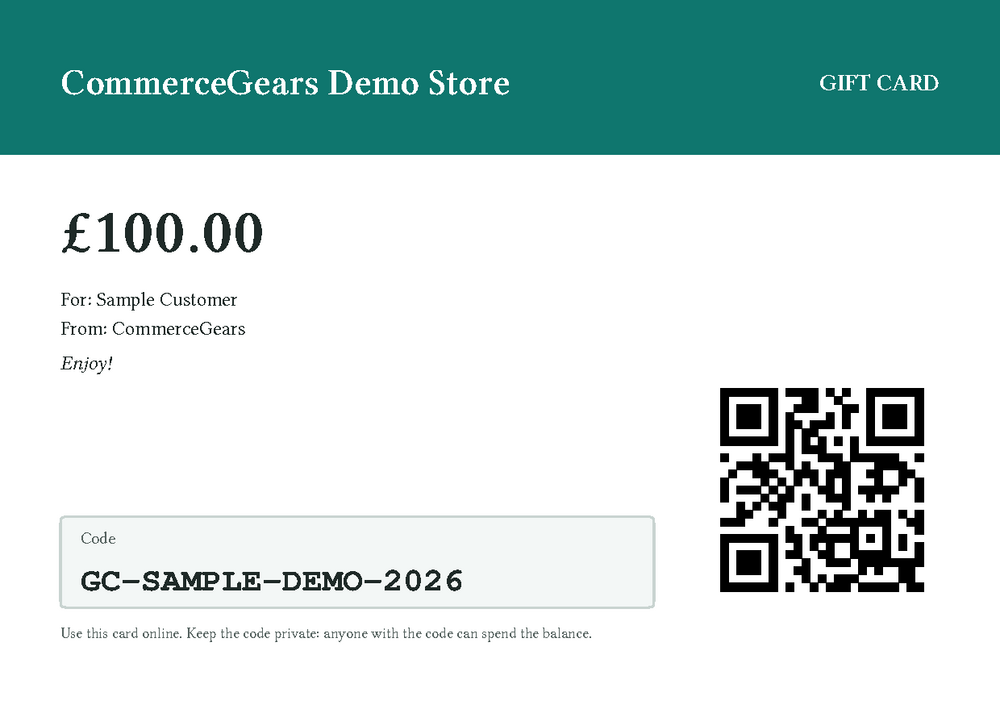
The gift card e-mail is sent on the delivery date (or straight away) with the code, the value, the message, the expiry date and a link to the printable PDF. The PDF is an A5 card with your store name, the value, the code and a QR code of the code. Printed cards are not e-mailed; download their PDF from the card page.
Cards expire at the end of their last day of use: the remaining balance is recorded as expired. The reminder e-mail goes out the configured number of days before.
9. Customers
- Balance check: page
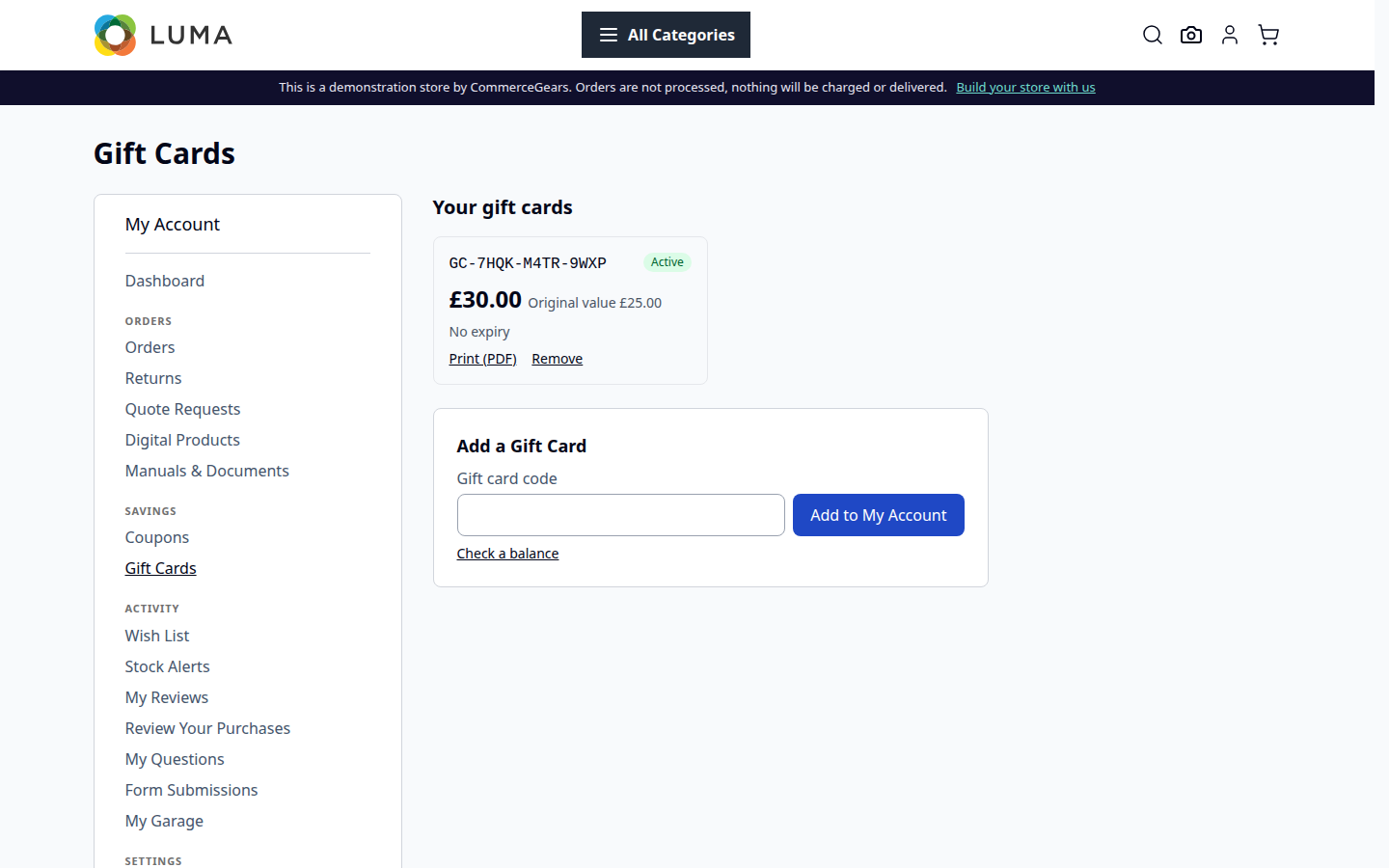
/commercegears_giftcard/balance/and the CMS widget "Gift Card Balance Check (CommerceGears)". - My Account > Gift Cards: cards the customer saved or bought, with balance, status, expiry and the PDF. Cards bought for someone else show a masked code.
- Coupon Wallet: with CommerceGears Coupon Wallet installed, My Coupons shows a Gift Cards section.
10. Liability report
CommerceGears > Gift Cards > Liability Report shows, per currency and period: outstanding at start, issued, spent on orders, returned to cards, manual changes, expired and outstanding at end, plus the number of cards issued. Export CSV downloads the same figures.

11. APIs
REST (customer): GET/POST /V1/carts/mine/commercegears-giftcards, DELETE /V1/carts/mine/commercegears-giftcards/:code; guests use /V1/guest-carts/:cartId/..., integrations /V1/carts/:cartId/.... Balance: POST /V1/commercegears-giftcards/balance with {"code": "..."}. Accounts (admin): GET /V1/commercegears-giftcards/accounts, GET .../accounts/:accountId, POST .../accounts, POST .../accounts/:accountId/adjust with {"amount": -5, "comment": "..."}.
GraphQL: query commercegearsGiftCardBalance(code), query commercegearsCustomerGiftCards, mutations applyCommerceGearsGiftCardToCart and removeCommerceGearsGiftCardFromCart (input cart_id, code), field Cart.commercegears_gift_cards, and product type CommerceGearsGiftCardProduct with commercegears_gift_card.
12. CLI
bin/magento commercegears:giftcard:verify: every balance must equal the sum of its history.bin/magento commercegears:giftcard:issue <order number>: issues any missing cards of an order.bin/magento commercegears:giftcard:run-jobs: sends due e-mails, expires cards and sends reminders now.
13. Permissions
System > Permissions > User Roles > CommerceGears > Gift Cards: View Gift Card Accounts; Create, Edit and Adjust Gift Cards; Code Pools; Liability Report; Gift Card Settings.
14. Troubleshooting
- No e-mails: check that cron runs and that e-mail sending is enabled (Stores > Configuration > Advanced > System). Failed e-mails show "Failed" in the grid; open the card and use Send E-mail Again.
- A card was paid for but not created: run
commercegears:giftcard:issue <order number>. - "Too many gift card codes were tried": the visitor reached the attempt limit; it clears after the configured minutes.
15. Uninstall
Disable the gift card products first. Then bin/magento module:disable CommerceGears_GiftCard and composer remove commercegears/module-gift-card. The tables commercegears_giftcard_* and the gift card columns on quotes and orders keep your history until you remove them yourself.
This guide is for version 1.2.1 and also comes with the module, in docs/user-guide.md. All user guides