User guide
Personalised Offers for Magento 2: User Guide
Turn purchase history into personal offers: rule based customer segments with automatic coupons, e-mails, an account page, a banner and reports.
- Version 1.0.4
- Magento 2.4.6 to 2.4.9
- PHP 8.2 to 8.5
- Hyvä and Luma
Personalised Offers gives each customer the offer that fits their history: a win-back coupon after 60 days without an order, a VIP discount after £1,000 of spend, 10% on dog products for customers who keep buying dog food, £10 off the second order after the first one, a birthday coupon. You build customer segments from rules, attach offers to them, and the module issues personal coupons, e-mails them, shows them in the customer account and in a small banner, and reports what they brought in. Version 1 is rule based.
Requirements
| Magento | Magento Open Source and Adobe Commerce 2.4.6 to 2.4.9 |
| PHP | 8.2 to 8.5 (Magento 2.4.6: PHP 8.2) |
| Storefront | Luma and Hyvä |
| Required packages | commercegears/module-core 2.x, commercegears/module-promo-core 2.x |
| Cron | Magento cron must run (segments, coupons and e-mails are processed by cron) |
Installation
- Set up access to the CommerceGears Composer repository (repo.commercegears.com), see https://commercegears.com/composer-access/.
- Install and enable:
composer require commercegears/module-promo-personalised-offers
bin/magento module:enable CommerceGears_PromoPersonalisedOffers
bin/magento setup:upgrade
bin/magento setup:di:compile
bin/magento setup:static-content:deploy
bin/magento cache:flush- Hyvä: run your theme's Tailwind build so the "Offers for You" templates are styled.
Configuration
Stores > Configuration > CommerceGears > Personalised Offers.
General
- Enabled (default, website, store view): when off, no coupons are issued or e-mailed for that scope, nothing is shown on the storefront and other promotions see no segments there. Coupons already issued stay valid.
- Coupon Code Prefix: e.g.
FORYOU-. Empty uses the prefix of the Promotions settings.
Segment Calculation (default scope)
- Full Recalculation Every (Hours): conditions based on time (days since the last order, birthdays) change without any event, so every segment is recalculated in full this often. Default 24.
- Update Customers After Orders and Account Changes: re-checks a customer within about a minute after an order is saved (placed, cancelled, refunded), the account is saved or the newsletter subscription changes.
- Customers per Batch: customer IDs per database query during a full recalculation. Default 5000.
- Seconds per Cron Run: a recalculation that takes longer continues in the next run. Default 50.
Offer Limits (default scope)
- Maximum Offers per Customer and Within (Days): across all offers. Default 1 offer per 7 days; 0 = no limit. A customer who reached the limit gets the next offer once the period has passed.
- Coupons per Cron Run: default 500.
Offer E-mails
- Sender, Only E-mail Newsletter Subscribers (default Yes; others still get the coupon in their account; every offer e-mail has an opt-out link either way), Quiet Hours From / Until (store time, default 21:00 to 08:00), E-mails per Cron Run (default 200).
Storefront
- "Offers for You" in My Account: Automatic shows the account link unless CommerceGears Coupon Wallet is active (its My Coupons page then shows the offers), Yes or No.
- On-site Banner: a small bar at the bottom of the page for logged-in customers with an offer that has "Show a Banner" on.
Customer segments
CommerceGears > Promotions > Customer Segments > Add New Segment.
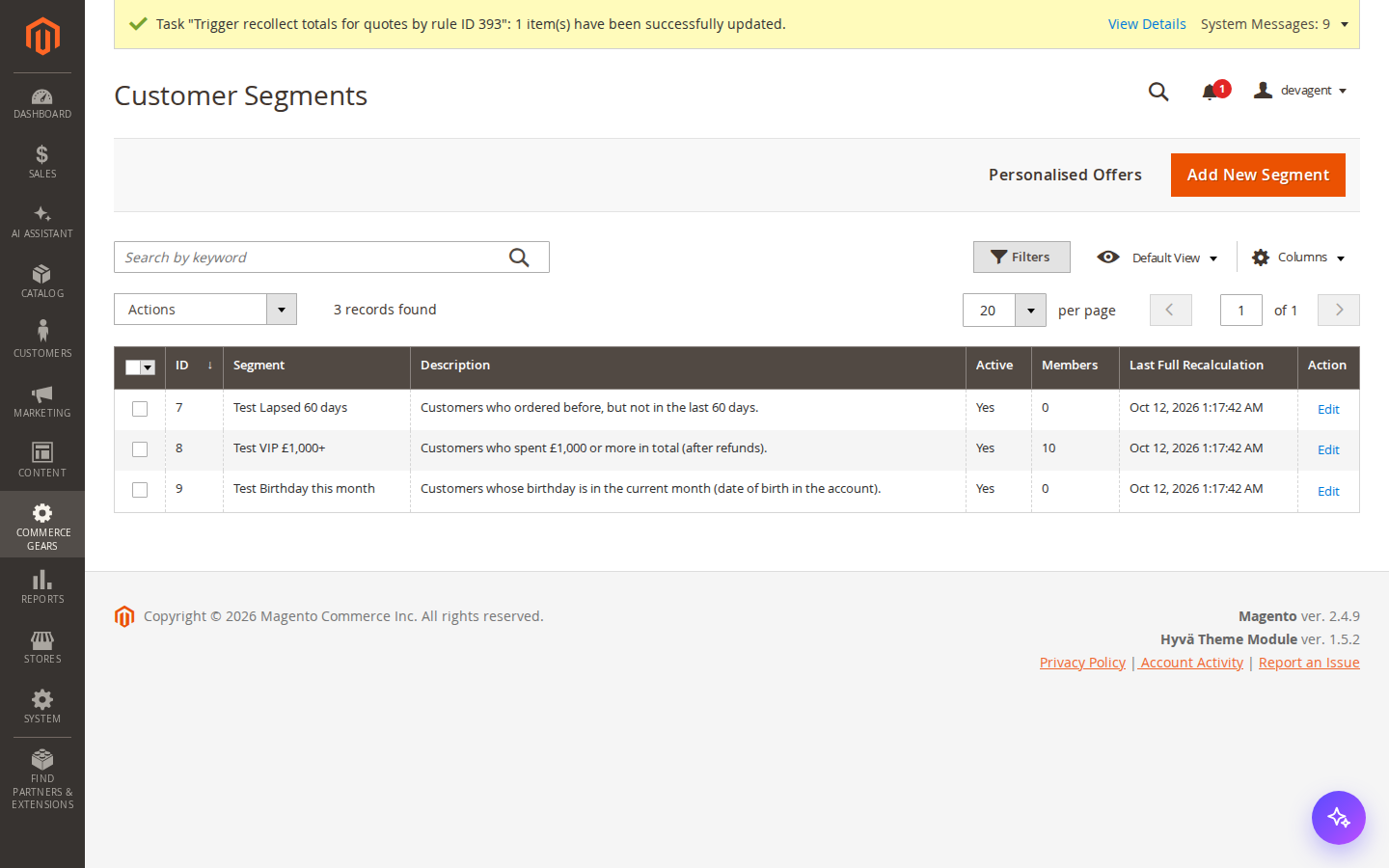
- Segment Name and Description: for you and for other promotions; customers never see them.
- Active: inactive segments are not recalculated, issue no coupons and match nobody in other promotions.
- Websites: customer accounts of these websites; none selected means all websites.
- Conditions: Magento's rule editor, as in cart price rules. Click the green plus to add a condition or a "Conditions combination" (a nested group), choose ALL or ANY and TRUE or FALSE for each group.
Available conditions:
| Group | Condition | Notes |
|---|---|---|
| Orders and spend | Days since the last order | Customers who never ordered do not match |
| Number of orders | All time, or "during the last N days" | |
| Total spend | Global base currency (orders of websites with another base currency are converted with the rate stored on the order), grand total minus refunds; all time or the last N days | |
| Average order value | Total spend divided by orders; all time or the last N days | |
| Has placed an order | Yes / No | |
| Has used a coupon code | Yes / No | |
| Products bought | Bought: SKU, Category or a product attribute | "in at least N order(s) during the last N days (0 = all time)" |
| Customer | Customer group, Website of the account | is one of / is not one of |
| Account age in days | ||
| Days until the birthday | Uses the date of birth in the account | |
| Birthday month | A month, or "the current month" | |
| Subscribed to the newsletter | Yes / No | |
| Billing country | Country of the default billing address |
Cancelled orders never count. Product attribute conditions compare the default (admin) value of the product.
Preview Members counts the customers that match the conditions on the screen (also before you save) and lists the most recent accounts with their orders, spend and last order.
When you save an active segment, its members are calculated straight away (on large stores the calculation continues in the background). The Members panel shows the number of members, the last full recalculation, the code other promotions use (offers_segment_<id>), the offers of the segment, members per day (joined, left) and the newest members. Recalculate Now starts a full recalculation.
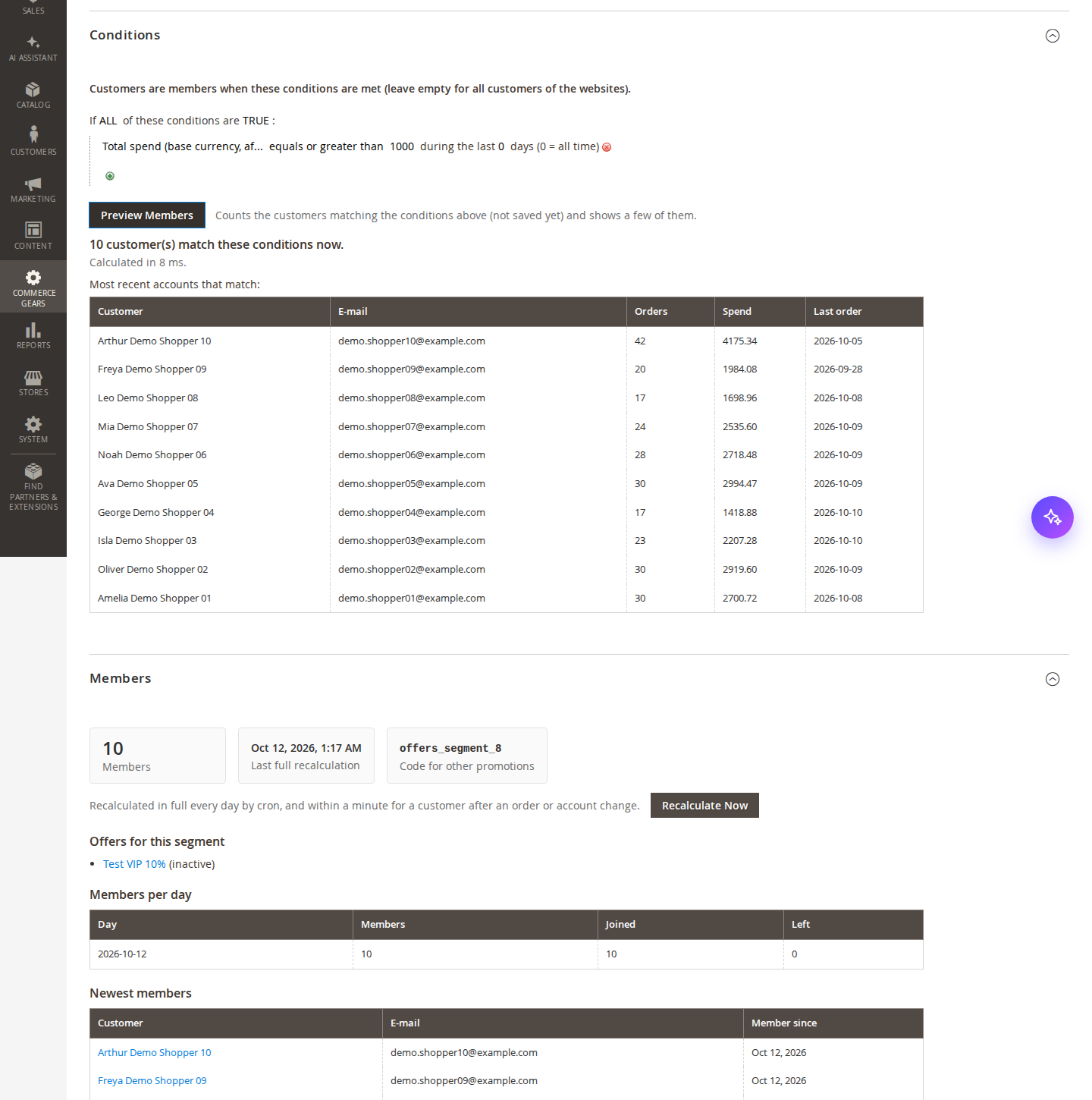
Examples:
- Lapsed 60 days: Has placed an order is Yes, and Days since the last order equals or greater than 60.
- VIP £1,000+: Total spend equals or greater than 1000.
- Dog food buyers: Bought: Category is one of (your dog food category) in at least 3 orders during the last 180 days.
- First order done: Number of orders is 1.
- Birthday this month: Birthday month is the current month.
Offers
CommerceGears > Promotions > Personalised Offers > Add New Offer.

Offer: Offer Name (for you), Active, Customer Segment, Runs From and Runs Until (optional), Priority (lower first in My Account and in the banner).
When (Give the Coupon):
- When the customer joins the segment: one coupon each time a customer joins. Also Current Members: Yes gives the coupon to everyone already in the segment, No only to customers who join after the offer is activated.
- Every N days while the customer is a member: a new coupon every Repeat Every (Days) days, counted from the day the customer joined.
- N days before the birthday: one coupon per birthday, from Days Before the Birthday days before it (0 = on the day). Members without a date of birth are skipped.
Coupon: Discount (percentage off, fixed amount off the basket, free shipping), Amount, Only Products in These Categories (empty = whole basket), Minimum Basket Subtotal (base currency, excluding tax), Coupon Valid for (Days). Every customer gets their own single-use code that only works for their account and expires automatically. The coupon is created through the Promotions core, so it also appears in CommerceGears > Promotions > Personal Coupons.
Showing and Sending: Reason Shown With the Coupon (e.g. "We miss you"), Personal Message with the placeholders {name}, {offer}, {code}, {expires} and {days}, Show in My Account, Show a Banner, Banner Text (same placeholders), Send by E-mail and E-mail Template (default "Personalised Offers: your personal offer"; copy it in Marketing > Email Templates to change the text or design per offer).
Coupons are issued by cron every 10 minutes after the offer is activated. Use the CLI below to issue them at once.
Storefront
- Offers for You (
/commercegears_offers/account/): cards with the reason, the discount, the personal message, the code with a Copy button and the expiry date. On Luma and Hyvä. - My Coupons (CommerceGears Coupon Wallet): the coupons appear with all other coupons (apply in the basket), plus an "Offers for You" section with the personal messages.
- Banner: a slim bar at the bottom of every page (not on checkout) with the banner text, Copy code, View offer and a close button. A closed banner stays closed for that offer. The page is cached as usual; the banner is loaded privately in the browser.
- E-mail: reason, discount, message, code, expiry date, a link to the account, for subscribers a link to the newsletter settings, and for everyone a "Stop these e-mails" link.
- Stop these e-mails: the link works without logging in and is signed for that customer only. It opens a page that asks for confirmation; after the button the customer gets no more personal offer e-mails (for any offer). Their coupons still appear in the account and the newsletter subscription is not changed. Mail programs that support one-click unsubscribe (List-Unsubscribe header) do the same with their own button.
- Offers by e-mail (on Offers for You, and in My Coupons when there are offers): shows whether offer e-mails are on and lets the customer turn them off or on again.
- Admin: Customers > All Customers > edit customer > Account Information > No Personalised Offer E-mails shows the choice; you can change it there (for example after a request by phone). If you use your own e-mail template, include
{{var optout_url}}.


Other promotions
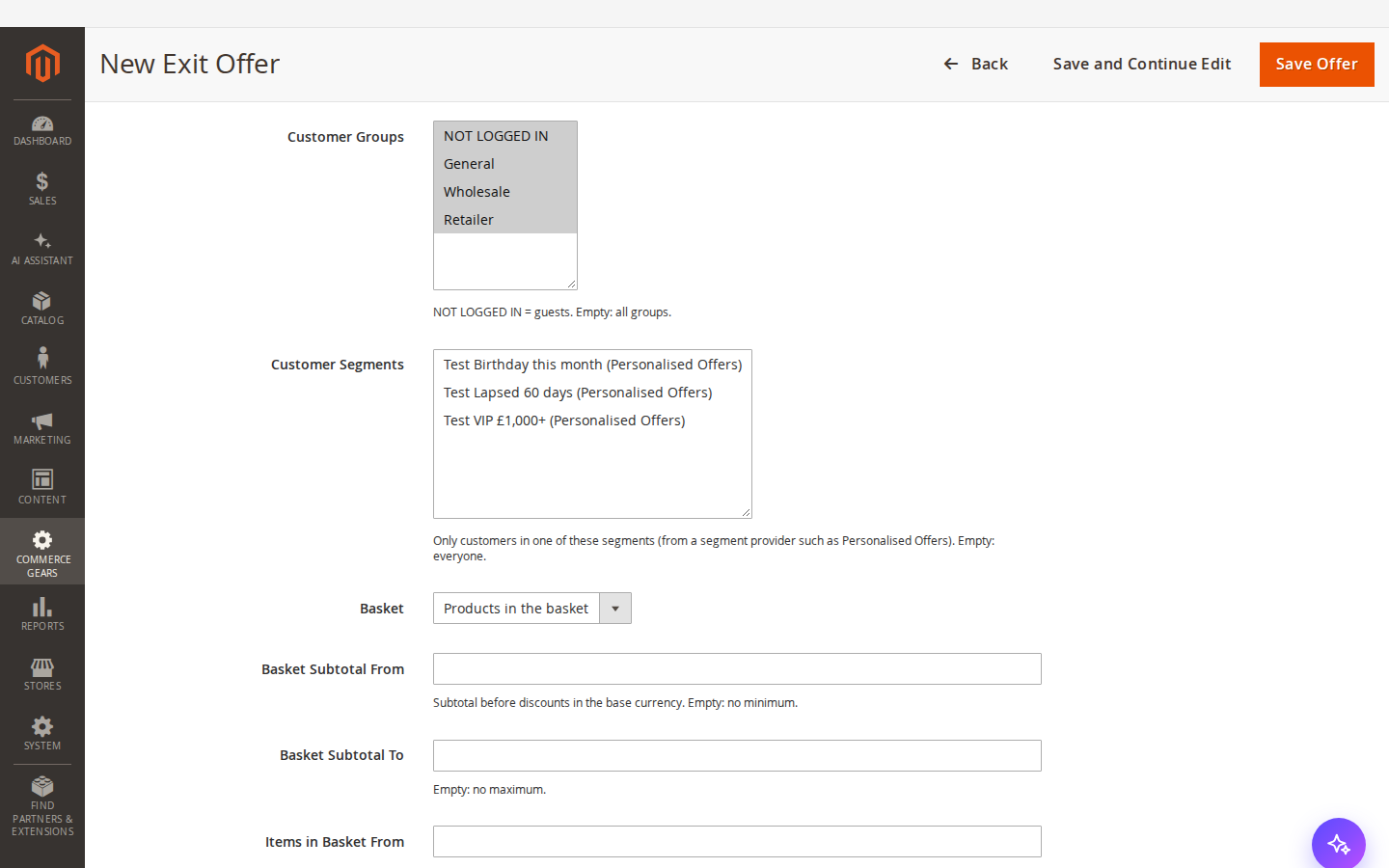
Exit Intent, Spin to Win and other CommerceGears promotions that support customer segments list the segments in their forms as "<segment name> (Personalised Offers)". For example, show an exit intent offer only to lapsed customers, or a Spin to Win campaign only to VIPs.
Report
CommerceGears > Promotions > Personalised Offers > Report. Choose a period. Per offer: coupons issued, e-mailed, banner views, used, conversion (used / issued), revenue of the orders that used them and discount given. Per segment: members at the start of the period, joined, left, members now and a members-per-day line. The coupon numbers also appear in CommerceGears > Promotions > Overview.
CLI
bin/magento commercegears:promo:segments:refresh                 # all active segments, in full
bin/magento commercegears:promo:segments:refresh --segment=3 -v   # one segment, with progress
bin/magento commercegears:promo:segments:refresh --due            # only segments that are due (like cron)
bin/magento commercegears:promo:segments:refresh --queue          # customers waiting after orders
bin/magento commercegears:promo:offers:process --dry-run          # customers due a coupon per offer
bin/magento commercegears:promo:offers:process [--offer=5] [--limit=100] [--no-email]
bin/magento commercegears:promo:offers:process --retry-failed     # try failed coupons again
Permissions
System > Permissions > User Roles > Role Resources: CommerceGears > Promotions > Personalised Offers with Customer Segments, Personalised Offers, Report and Personalised Offers Settings.
Troubleshooting
- A segment has 0 members: use Preview Members to check the conditions; check Websites; make sure the segment is active and cron runs (
bin/magento cron:run). - No coupons are issued: the offer must be active, within its dates, its segment active and the module enabled for the customer's website.
commercegears:promo:offers:process --dry-runshows how many customers are due. The limit of offers per customer across offers may hold the next offer back. - No e-mails: check Send by E-mail, Only E-mail Newsletter Subscribers, the quiet hours, Magento's mail sending setting (Stores > Configuration > Advanced > System) and whether the customer turned offer e-mails off (No Personalised Offer E-mails in the customer account; skipped e-mails show the reason).
- No banner: the customer must be logged in, have an unused coupon of an offer with "Show a Banner" and must not have closed it.
Uninstall
Deactivate the offers first. Then bin/magento module:disable CommerceGears_PromoPersonalisedOffers and composer remove commercegears/module-promo-personalised-offers. The tables commercegears_promo_segment* and commercegears_promo_offer* stay until you drop them. Coupons already issued stay valid until they expire.
This guide is for version 1.0.4 and also comes with the module, in docs/user-guide.md. All user guides