User guide
Request a Quote for Magento 2: User Guide
Shoppers ask for a price from the product page or the cart, you reply with a proposal from the admin, and the agreed prices go into their cart, locked. Quick order and hidden prices included.
- Version 2.0.6
- Magento 2.4.6 to 2.4.9
- PHP 8.2 to 8.5
- Hyvä and Luma
Let shoppers ask for a price instead of leaving your shop: they collect products in a quote basket, you reply with a proposal from the admin, and the agreed prices go into their cart. The module also adds a Quick Order page and optional hidden prices for chosen customer groups. This guide covers installation, configuration and day-to-day use.
- Demo (Luma): https://demo.commercegears.com/joust-duffle-bag.html
- Demo (Hyvä): https://demo.commercegears.com/hyva/joust-duffle-bag.html
- Quick order demo: https://demo.commercegears.com/hyva/quickorder/
- Admin demo: https://demo.commercegears.com/try-admin/request-quote (seven example requests, one per status)
- Changelog: Release notes · Questions: FAQ
1. Requirements
| Magento | Open Source or Adobe Commerce 2.4.6 to 2.4.9 |
| PHP | 8.2 to 8.5 (Magento 2.4.6: PHP 8.2) |
| Themes | Luma, Blank and themes based on them; Hyvä 1.3+ (the checkout uses the Luma fallback on Hyvä) |
| Other | commercegears/module-core (installed automatically) |
2. Installation
Install with Composer from repo.commercegears.com. The access keys are in your account on commercegears.com; see Composer access for details.
composer config repositories.commercegears composer https://repo.commercegears.com
composer config --auth http-basic.repo.commercegears.com PUBLIC_KEY PRIVATE_KEY
composer require commercegears/module-request-quote
bin/magento setup:upgrade
bin/magento setup:di:compile            # production mode only
bin/magento setup:static-content:deploy # production mode only
bin/magento cache:flush
On Hyvä the module registers itself for Tailwind source scanning. If you build your theme's CSS yourself, run your usual Hyvä build after installing so the module's classes are included.
To update later: composer update commercegears/module-request-quote, then the same bin/magento commands.
The module works straight after installation: quote requests and Quick Order are on for everyone (guests included), Hide Prices is off. Make sure Magento's cron runs, because proposals expire by cron.
3. Settings
Stores > Configuration > CommerceGears > Request a Quote, also under CommerceGears > Request a Quote > Settings. Every setting can be set per website and store view.
General
| Setting | What it does |
|---|---|
| Enabled | Switches off quote requests, Quick Order and hidden prices together. Default: Yes. |
Quote Requests
| Setting | What it does |
|---|---|
| Enable Quote Requests | Customers can collect products in a quote basket and ask for a price. Default: Yes. |
| Customer Groups | Who can request a quote. Empty means everyone, guests included. Default: empty. |
| Show Quote Buttons On | Product page ("Add to Quote"), category and search lists ("Add to Quote"), shopping cart ("Request a Quote for This Cart"). Default: product page and shopping cart. Products with a hidden price always get a "Request a Quote" button. |
| Proposals Valid For (Days) | Sets the valid-until date of a new proposal (1 to 365 days); you can change it on each request. Default: 14. |
| Requests per Hour per IP Address | Spam protection: quote requests one visitor can send per hour. 0 means no limit. Default: 5. |
Emails
| Setting | What it does |
|---|---|
| Send Store Notifications To | Email addresses separated by commas. Empty means the General Contact address. |
| Email Sender | The store email identity the emails are sent from. Default: General Contact. |
| New Request (to the Store) | Template for a new request. |
| Customer Accepted, Rejected or Replied (to the Store) | Template for customer updates. |
| Request Received (to the Customer) | Confirmation to the customer. |
| Proposal or Message (to the Customer) | Proposal, message or rejection from the store. |
To change the wording, create a template from the module's template under Marketing > Email Templates and select it here. Replies go to the other side (Reply-To).
Hide Prices
| Setting | What it does |
|---|---|
| Enable Hide Prices | Turn on to hide prices and "Add to Cart". Default: No. |
| For Customer Groups | Customers in these groups see no prices. Default: NOT LOGGED IN (guests). |
| Apply To | All products, or only products with "Hide Price" = Yes and products in the categories below. Default: All products. |
| Categories | Shown for "selected" products. Subcategories are included. |
| Text Instead of the Price | Shown where the price would be; links to the sign-in page for guests. Empty means no text. Default: "Log in to see prices". |
| Show "Request a Quote" Instead of "Add to Cart" | Only for customer groups that can request a quote. Default: Yes. |
Single products are flagged with the product attribute Hide Price (Yes/No, website scope, group Product Details). Saving these settings refreshes the page and block caches.
Quick Order
| Setting | What it does |
|---|---|
| Enable Quick Order | The page /quickorder. Default: Yes. |
| Customer Groups | Who can use Quick Order. Empty means everyone, guests included. Default: empty. |
| Show Links | "Quick Order" links in the header and in My Account. Default: Yes. |
4. How customers request a quote
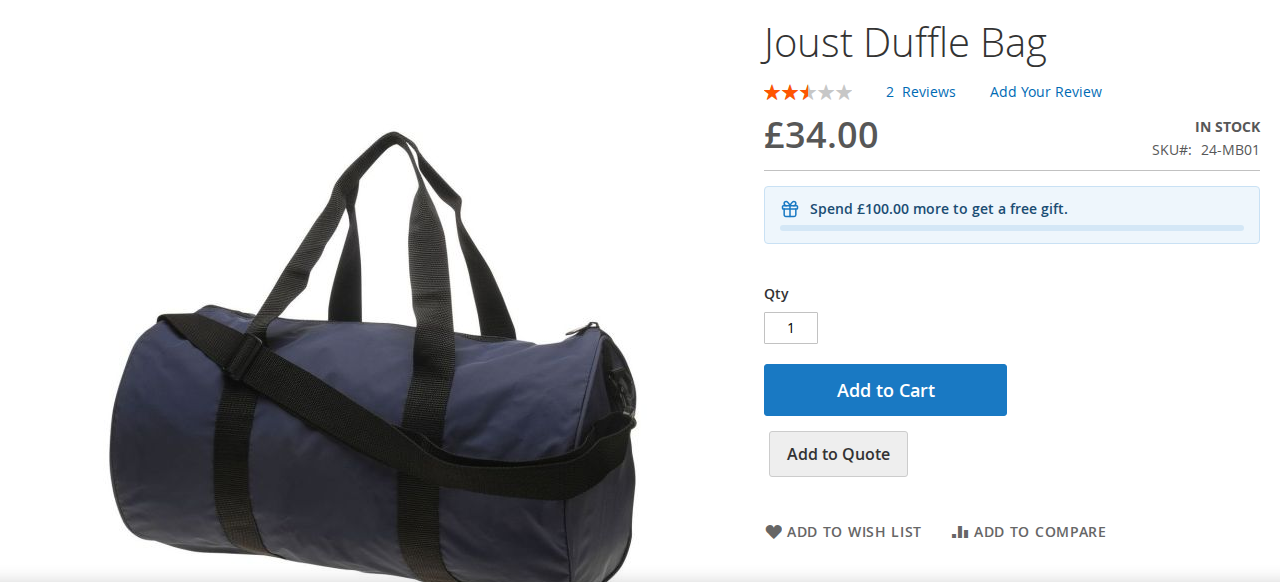
- On the product page the customer chooses options and a quantity and clicks Add to Quote. If you enabled it, the button is also on category and search lists. In the cart, Request a Quote for This Cart moves the cart lines into the quote (CommerceGears Free Gift lines and lines from an accepted quote stay in the cart).
- The header shows the number of products in the quote (Luma top links, Hyvä header icon).
- The quote basket (
/requestquote/basket) lists the products with their catalogue prices for reference. The customer changes quantities, removes lines, fills in name, email, company and phone, adds a comment and clicks Send Quote Request. Quantities above the stock level are allowed; stock is checked when the customer accepts. - The customer gets a confirmation email and the store gets a notification. Guests receive a personal link to follow the request.

5. Working on requests in the admin
Quote Requests grid
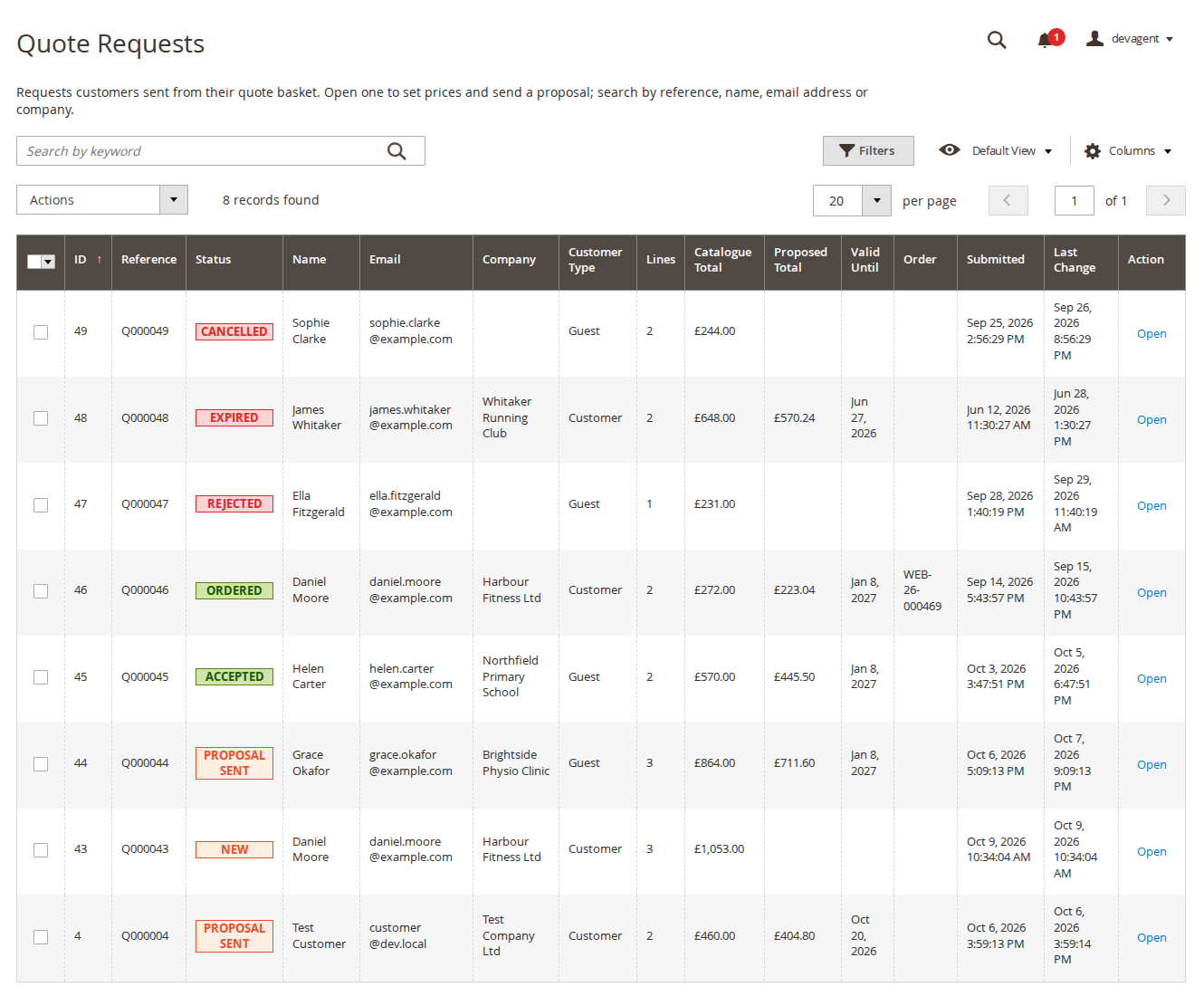
CommerceGears > Request a Quote > Quote Requests lists the requests with reference (Q000044), status badge, name, email, company, proposed total, valid-until date, linked order and submitted date. More columns (ID, customer or guest, store view, lines, catalogue total, last change) are under Columns. Search by reference, name, email address or company; filter by any column; delete with the mass action (lines and history are deleted, orders are not affected).
Request page
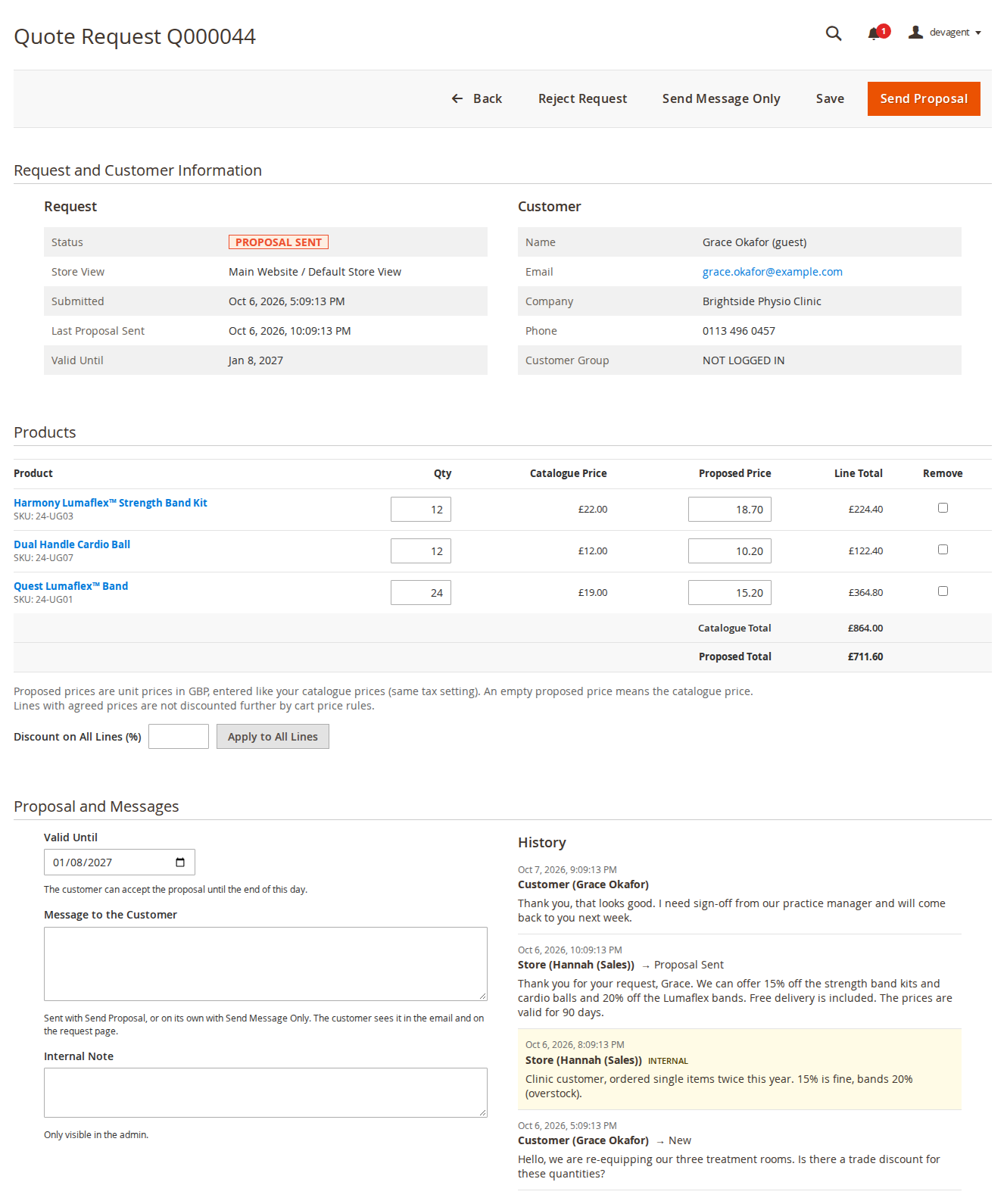
Open a request to see the request and customer details, the lines and the history.
- Lines: change the quantity, enter a proposed unit price or tick Remove. An empty proposed price means the catalogue price. Discount on All Lines (%) with Apply to All Lines fills every line at once.
- Valid Until: the customer can accept until the end of this day.
- Message to the Customer: sent with Send Proposal, or on its own with Send Message Only.
- Internal Note: only visible in the admin; it appears in the history marked as internal.
The page actions bar has Back, Reject Request (asks for confirmation), Send Message Only, Save and Send Proposal. Proposed prices are unit prices in the website's base currency, entered like your catalogue prices (same "prices include tax" setting).
Statuses
| Status | Meaning |
|---|---|
| New | Sent by the customer, waiting for your proposal. |
| Proposal Sent | You sent prices; the customer can accept until the valid-until date. |
| Accepted | The customer accepted; the lines are in their cart at the agreed prices. The lines are read-only; send a new proposal to change them. |
| Ordered | The customer placed the order; the request links to it. |
| Rejected | Rejected by the store (New or Proposal Sent only) or by the customer (also after accepting, until they order). |
| Expired | The valid-until date passed (checked hourly). |
| Cancelled | The customer cancelled before receiving a proposal. |
Rejected, Expired and Cancelled requests can be reopened on purpose: the button then reads Reopen and Send Proposal and asks for confirmation, for example to offer a better price after a rejection. Ordered requests cannot get a new proposal.
6. Accepting a proposal and the cart

Customers find their requests under My Account > My Quote Requests; guests open the link from their email. The request page shows the proposed prices, the valid-until date and the messages, with Accept and Add to Cart, Reject Proposal, Cancel Request (before a proposal) and Send a Message.
Accepting adds every line to the cart with the agreed unit price and quantity:
- The line shows the quote reference, for example "Quote: Q000012 (agreed price, fixed quantity)", in the cart, checkout, order and emails.
- The quantity and price cannot be changed. The quantity is set back before every totals calculation (cart, mini cart, REST and GraphQL) with a notice in the cart. Only one cart line per quote line gets the agreed price.
- Removing lines is fine. Add to Cart Again puts missing lines back without duplicates.
- Agreed prices are not discounted further by cart price rules. Bundles with dynamic prices are supported: the agreed price is spread over the bundle's items.
- A guest cart merged at sign-in keeps the prices.
- The agreed price applies only while the request is Accepted and not expired. Otherwise the line falls back to the normal price.
When the order is placed, the request becomes Ordered, is linked to the order, and the order gets the internal comment "Prices from quote request Q000012".
7. Quick Order

The page /quickorder (links in the header and My Account) lets customers:
- type SKUs and quantities in rows, with suggestions by SKU or name from 3 characters (up to 10 products visible in the store), and add more rows with Add Rows;
- paste a list with one
SKU,qtyper line (comma, semicolon or tab); - upload a CSV file (columns SKU and quantity, up to 256 KB and 200 rows; the file is only read, not stored).
Check shows each row as in stock, out of stock, not found or "Choose options" (with drop-downs for configurable products; the SKU of a configurable product's child is turned into the parent with its options), with the product name and price. Add to Cart or Add to Quote then adds the rows; rows that could not be added stay on the page with the reason.
8. Hidden prices
With Hide Prices on, customers in the chosen groups see no prices and no "Add to Cart" on category and search lists, the product page, widgets, related and up-sell products, compare and the wish list. They see the text you set (for guests linked to the sign-in page) and a "Request a Quote" button on the product page when their group may request quotes. Hidden products cannot be added to the cart from the storefront, wish list, Quick Order, REST or GraphQL; accepted quote lines are the exception. GraphQL price fields are empty for those groups and the Open Graph price tag is left out.
Other extensions that print prices themselves (structured data, analytics data layers) should skip the price when the product's can_show_price flag is false.
9. CLI commands
# Render an email without sending it
bin/magento commercegears:request-quote:email-preview --request=<id> --type=<admin_new|admin_update|customer_received|customer_update> [--message=...] [-o file.html]

# Expire proposals past their valid-until date (also runs hourly by cron)
bin/magento commercegears:request-quote:expire

# Create one example request in status "Proposal Sent" (no emails)
Cron jobs (group default): commercegears_rfq_expire (hourly) and commercegears_rfq_clean_baskets (daily; removes quote baskets that were never sent and untouched for 30 days).
10. Permissions (ACL)
Under System > Permissions > User Roles > Role Resources:
| Resource | Allows |
|---|---|
| CommerceGears > Request a Quote > View Quote Requests | Open the grid and request pages (read only). |
| ... > Edit, Send Proposals and Delete | Change lines, send proposals and messages, reject, delete. |
| Stores > Settings > Configuration > CommerceGears Request a Quote | The settings section. |
11. Troubleshooting
- No "Add to Quote" button: check General > Enabled, Enable Quote Requests, Show Quote Buttons On and the customer's group. Buttons follow the product's saleable state, so out-of-stock products do not show one.
- Proposals never expire: Magento's cron is not running. Run
bin/magento commercegears:request-quote:expireonce and set up cron. - "You have sent several quote requests in a short time": the per-IP limit was reached. Behind a proxy or CDN, configure Magento's real-IP header so visitors are not counted as one address.
- No emails arrive: check Send Store Notifications To and the email sender, and preview the email with
commercegears:request-quote:email-preview. - Hyvä buttons unstyled: rebuild your theme's Tailwind CSS.
- Prices still visible after enabling Hide Prices: flush the full page cache once; other extensions printing prices need to respect
can_show_price.
12. Uninstall
bin/magento module:disable CommerceGears_RequestQuote
composer remove commercegears/module-request-quote
bin/magento setup:upgrade
bin/magento cache:flush
The tables commercegears_rfq_request, commercegears_rfq_request_item and commercegears_rfq_history and the product attribute commercegears_hide_price stay in the database; remove them yourself if you no longer need the data.
This guide is for version 2.0.6 and also comes with the module, in docs/user-guide.md. All user guides